EGYM Genius: Member App Onboarding Guide
Introduction
About this guide
This guide explains how members onboard with EGYM Genius using the EGYM Member App. This is part of the Genius onboarding series, which also covers the onboarding process on the EGYM Fitness Hub, EGYM Smart Strength machines, and the EGYM Trainer App.
Genius overview
EGYM Genius uses AI to make the entire gym floor even smarter. Genius integrates leading fitness brands into a single training experience and creates hyper-personalized training plans for members that adapt to their goals, fitness levels, and all the equipment available in your gym.
Overview
The EGYM Member App is a gym’s all-in-one digital companion, designed to enhance the member experience both inside and outside the gym. It allows members to access their personalized EGYM Genius training plans, track workouts, monitor progress (BioAge), and stay engaged with their fitness journey. The app integrates with EGYM equipment and other fitness services, ensuring a connected and data-driven training experience.
Onboard on Genius in the Member App
EGYM Genius empowers gym members to take control of their fitness journey by generating personalized training plans in the EGYM Member App. With Genius, you can create and navigate workouts tailored to your goals, training preferences, and available equipment for a structured and effective workout experience.
Get started
Members can start the Genius onboarding process in the Member App. They'll need to complete their body analysis on the Fitness Hub and strength assessments on Smart Strength machines, then generate their training plan in the Member App.
Opmerking
Make sure you have already downloaded and created an account for your gym’s Member App.
Generate your first training plan
Launch the Member App.
Under , tap .
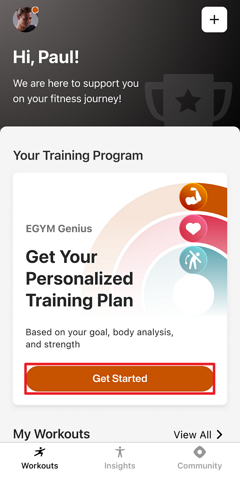
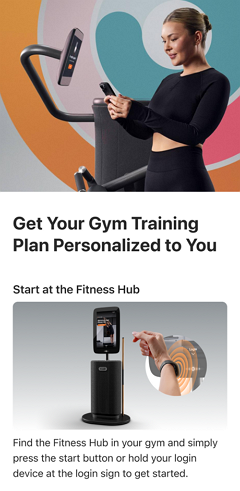
Follow the on-screen instructions to:
set your fitness goal
complete body analysis on the Fitness Hub
do strength assessments on Smart Strength
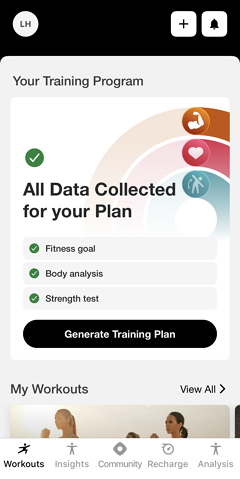
Once you’ve completed the initial onboarding, back in the app, tap .
Opmerking
The Genius onboarding checklist updates as you go. If you miss a step (like a strength test), the app will show what’s left and guide you to complete it.
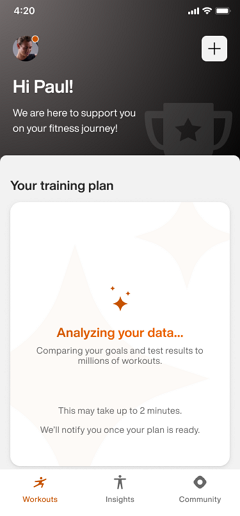
Genius will start generating your plan. You will get a notification once it's ready.
Opmerking
Make sure notifications are turned on in your device's settings. Otherwise, check back later in the app.
Belangrijk
For gym owners:
To ensure members receive push notifications, your gym’s Member App must be able to publish updates. Make sure the account holder has accepted all required Apple App Store Connect agreements, including both the standard license agreement and any required Paid Apps agreements.
For Android, if your gym operates its own Google Play developer account, you must accept the Google Play Developer Distribution Agreement.
Track your workout
Opmerking
For your first Genius workout, tap and follow the on-screen guidance to learn how to track your exercises.
To start your Genius training plan:
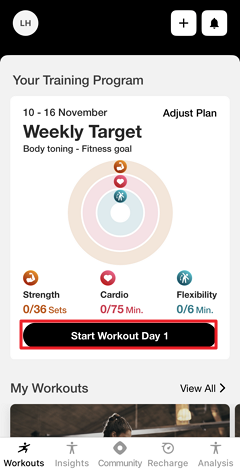
Under , tap (1, 2, 3).
Or, navigate to , tap , and select (1, 2, 3, etc.).
If needed, tap the settings at the top of the screen to edit the , , and . Tap when done.
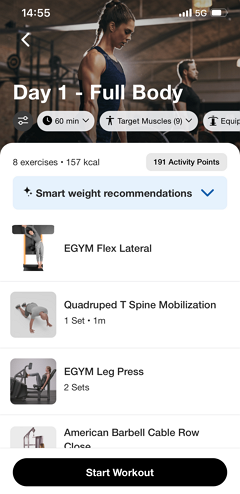
Tap .
Do each exercise and set individually. Some exercises are tracked automatically.
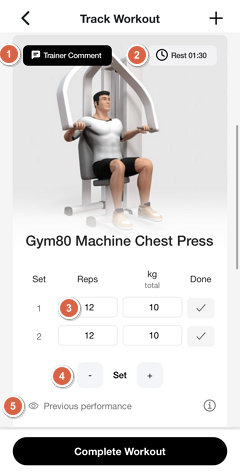
Tap or (if available) for detailed exercise guidance and recommended machine settings.
Tap to enable or disable breaks between sets and adjust the duration. Genius suggests rest times automatically.
Tap the different fields (for example: , , /) to manually adjust them.
Tap - or + to remove or add sets.
Opmerking
The availability of these options may vary depending on the type of machine or exercise.
On some exercises, tap to show or hide your progression over time.
When you complete a set or exercise, tap .
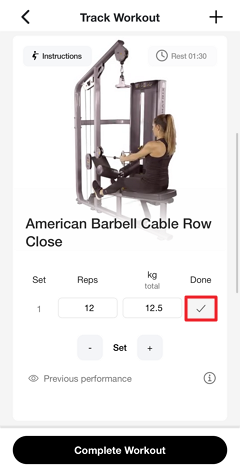
Once all sets are complete, tap .
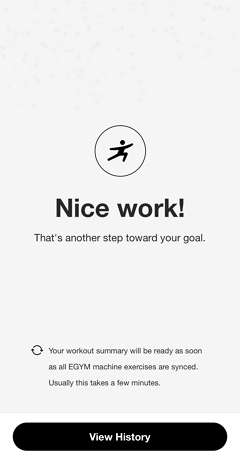
Tap . Then, tap on the workout to view its summary.
Manage Genius Training Plans
Learn how to track your progress, view past and upcoming workouts, and customize your Genius training plan to fit your needs.
About Weekly Target
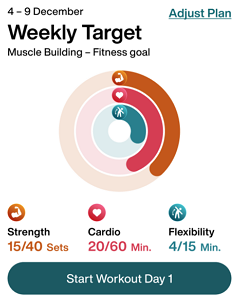
After setting up your Genius training plans, you will see a on your home screen in the app. This is a widget that helps you stay on track by setting a goal for how many workouts you should complete each week.
Here’s how it works:
Weekly progress rings: Each week, you’ll see a ring that fills up as you complete workouts. Your goal is to complete enough workouts—whether they’re Genius workouts or others—to close the ring.
Workout of the day: Instead of seeing the full list of workouts, you’ll get one recommended workout at a time. This is based on your training preferences and past workouts.
Automatic updates: Your next workout becomes available once you complete the current one. If you don’t track a workout, the next suggested workout won’t change.
Weekly reset: Your progress resets every Sunday at midnight, and a new Weekly Target starts on Monday.
By following your Weekly Target, you can stay motivated and build consistent training habits!
View workouts
Navigate to and tap .
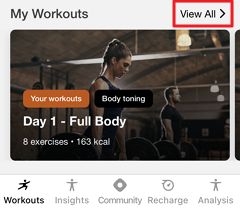
Here, you can see workouts created by you, your trainer, or your club.
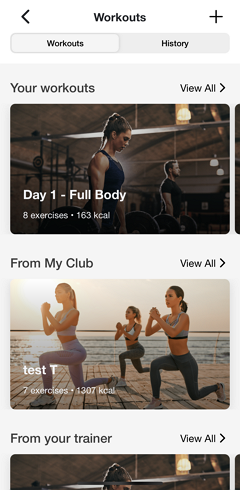
Tap any training plan to view or start it.
View workout history
Navigate to and tap .
On the top of the page, tap .
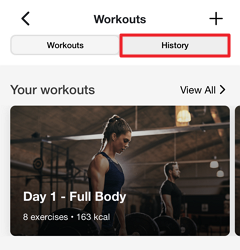
Here, you can view all completed workouts:
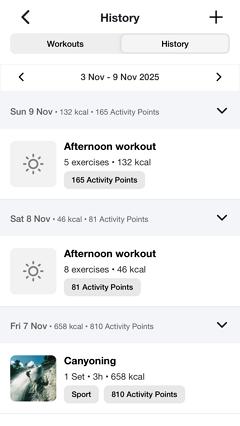
Tap the left and right arrows to view different weeks.
Tap on a workout to view its details.
Edit Genius workout
Genius training plans are designed for you, but you can adjust them before or during your workout as needed.
Enter a workout via > or > select workout. You can edit that day's workout via the following options.
Opmerking
These options only affect that day's workout. Future workouts won't be affected.
Tap on an item at the top of the screen.
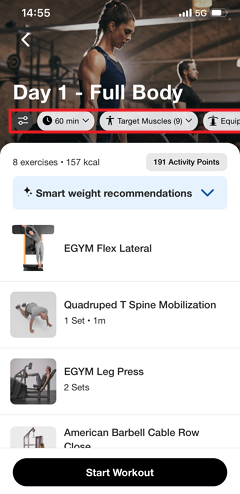
Make adjustments as needed. Then, tap .
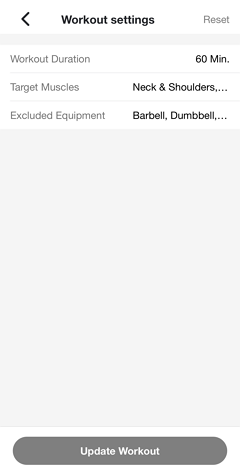
Opmerking
If needed, you can always go back to the workout settings and tap > to revert to the original version.
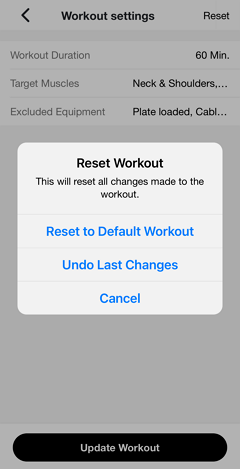
Genius will regenerate that day's workout according to the new preferences. You will get a notification once it's ready.
Opmerking
Make sure notifications are turned on in your device's settings. Otherwise, check back later in the app.
Belangrijk
For gym owners:
To ensure members receive push notifications, your gym’s Member App must be able to publish updates. Make sure the account holder has accepted all required Apple App Store Connect agreements, including both the standard license agreement and any required Paid Apps agreements.
For Android, if your gym operates its own Google Play developer account, you must accept the Google Play Developer Distribution Agreement.
Opmerking
These options only affect that day's workout. Future workouts won't be affected.
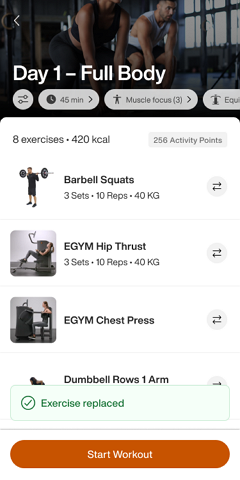
Next to an exercise, tap the replace icon.
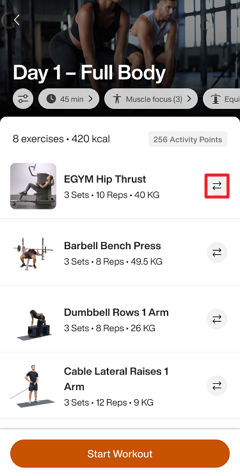
Select an exercise to replace the original.
You can select from the recommended exercises, or tap to find a specific one.
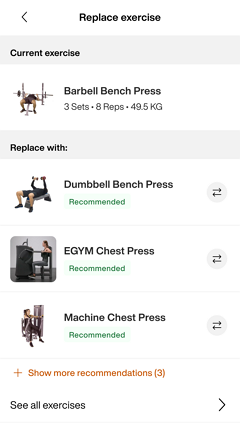
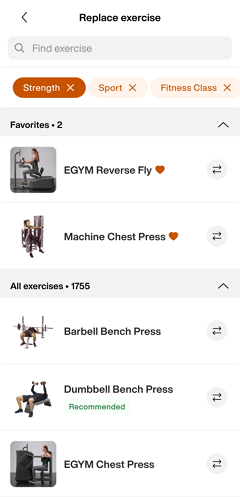
Once you're done, tap to begin.
Opmerking
Changes made during a workout won’t impact future workouts.
In a workout, tap +.
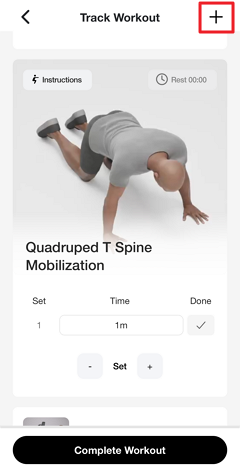
Edit the workout:
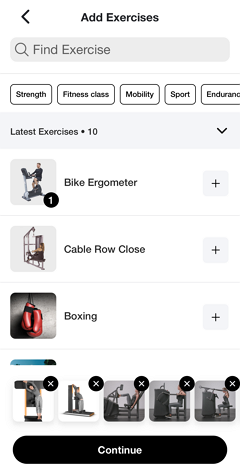
Remove an exercise: At the bottom of the page, tap x on an exercise.
Add an exercise: Tap + next to an exercise.
Reorder exercises: Remove (x) and add (+) exercises in the desired order.
Tap when done.
During your workout, you can also:
Press down on the ☰ icon to drag-and-drop exercises to reorder them.
Edit Genius training plan preferences
You can update your Genius training plan preferences at any time in the app to better match your fitness goals, experience, and available equipment.
In the Genius widget (), tap .
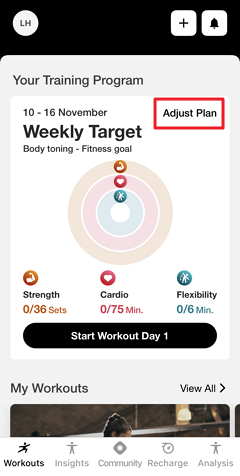
Change your preferences as needed.
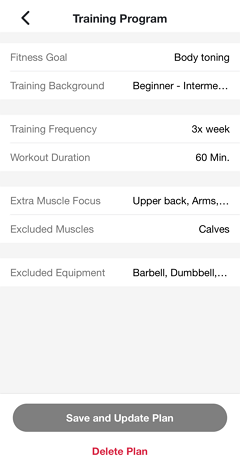
Tap .
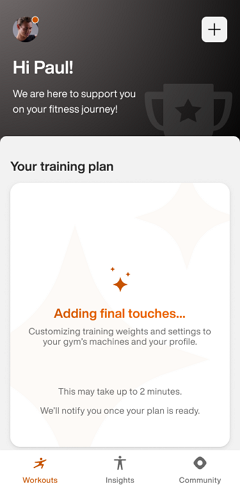
Genius will regenerate your plan according to the new preferences. You will get a notification once it's ready.
Opmerking
Make sure notifications are turned on in your device's settings. Otherwise, check back later in the app.
Belangrijk
For gym owners:
To ensure members receive push notifications, your gym’s Member App must be able to publish updates. Make sure the account holder has accepted all required Apple App Store Connect agreements, including both the standard license agreement and any required Paid Apps agreements.
For Android, if your gym operates its own Google Play developer account, you must accept the Google Play Developer Distribution Agreement.