Customize your exercise library
Once the gym inventory is set up, Genius filters exercises based on your available equipment, ensuring compatibility and relevance. These exercises are then further refined through the default EGYM “master library.” This process determines which exercises appear in the exercise library for the EGYM Trainer App and Member App, complete with generic equipment details and accompanying MP4 files (videos).
The exercise library can be fully customized to better reflect your gym’s unique offerings and member needs, further enhancing the personalization and effectiveness of training plans.
We recommend customizing this library to:
ensure that only relevant exercises are available in the Trainer App and Member App.
ensure that members can easily locate machines and perform exercises independently.
tailor the apps to fit your gym’s brand image.
Go to the EGYM Business Suite.
Go to > .
Select > .
Next to the exercise library for your gym, click the eye icon.
Scroll down or search to look through exercises and classes.
Turn exercises and classes on or off as needed.

Nota
If you have EGYM Smart Strength or Smart Flex machines, make sure they’re also turned on.
On an exercise or class, click the eye icon. Change the name, description, and icon (image or video) as needed.
Atenção
Do not completely change exercises. Doing so will cause issues with Genius training plans.
If you need to create custom exercises or classes, refer to Create custom exercises for instructions.
You may also submit a exercise request to via your Customer Success Manager so our Sport Science team can consider adding it. In your request, make sure to include the exercise name, description, and a link to an example video.

Nota
Training plans in the Member App and Trainer App automatically include the vendor names, such as "EGYM". To prevent duplication, we don't recommend adding vendor names manually.
If needed, you can create custom strength exercises ("CSE") or custom fitness classes ("CFC") for your gym using the placeholder exercises in the exercise library. These exercises are already mapped to a body region.
Importante
Note that Genius will not prescribe custom strength exercises.
Also, Genius cannot calculate smart weight recommendations for custom strength exercises even if trainers or members manually add them to their plans.
Go to the EGYM Business Suite.
Go to > .
Select > .
Next to the exercise library for your gym, click the eye icon.
Use the search bar to search for "CSE" (Custom Strength Exercises) or "CFC" (Custom Fitness Classes).
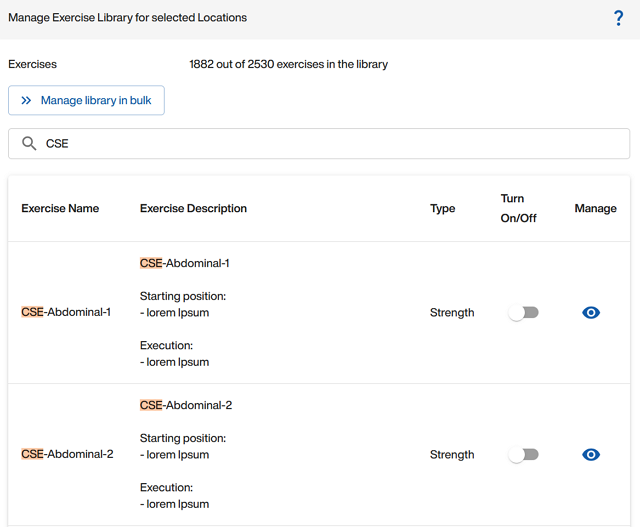
Find the exercise type or class you want to customize. For example, for a custom abdominal exercise, you could select "CSE-Abdominal-1".
On an exercise or class, click the eye icon. Change the name, description, and icon (image or video) as needed.