Custom LED color
Purpose
This article explains how to configure LED settings for Smart Strength Series 3 machines using the Business Suite. With the right setup, you can personalize the lighting experience in your gym — including brand colors and visual feedback for members. The machine uses its factory default lighting behavior, which may not reflect your gym's branding. We recommend configuring LED settings before your Series 3 machines go live to ensure a consistent experience from day one.
Before you start
You must have access to the Business Suite with admin rights.
Your gym must have at least one Series 3 machine connected.
Configure LED settings for your Series 3 machines
Open the Business Suite.
Select EGYM Settings from the main navigation or navigate to the Smart Strength product page in the Business Suite.
Select the Custom LED Color tab to open the LED configuration options.
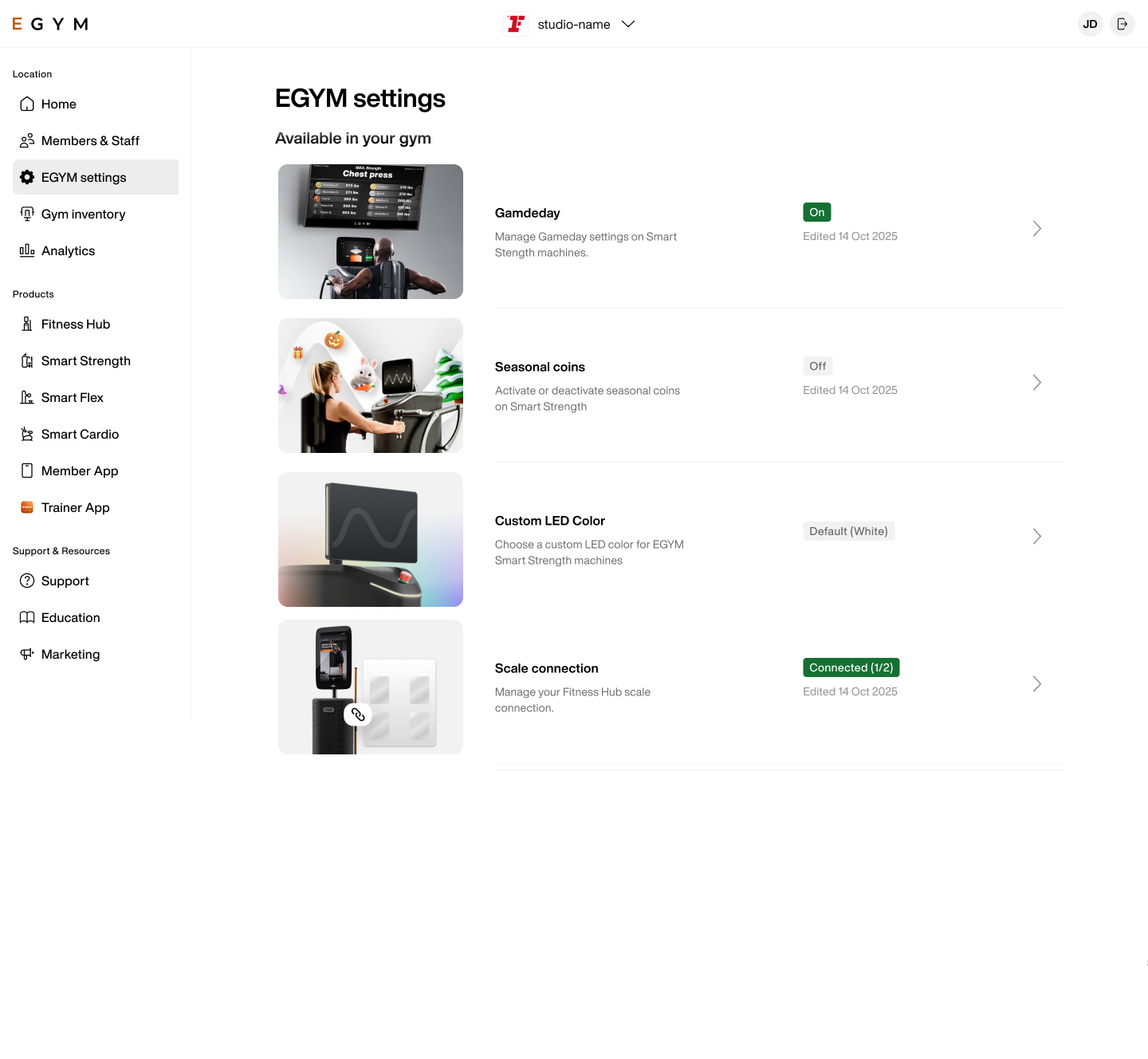
Choose your preferred settings:
Huomaa
The machine uses its factory default lighting behavior, which may not reflect your gym's branding. We recommend configuring LED settings before your Series 3 machines go live to ensure a consistent experience from day one.
Brand color: Select a primary color that matches your gym's branding. The LEDs on the Series 3 machines will reflect this color during idle and active states.
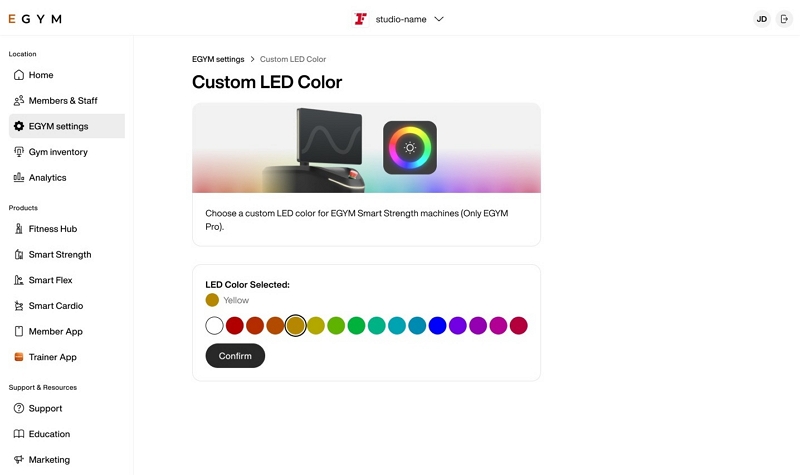
Select Confirm to apply your changes.
Huomaa
Changes may take a few minutes to appear on the machine. If the LED display does not update, restart the machine and check the connection status in the Business Suite.