EGYM Genius: Gym Inventory Guide
Introduction
About this guide
This comprehensive guide is designed for gym operators and covers everything you need to know about the gym inventory in the EGYM Business Suite. It includes step-by-step instructions for setting up, managing, and maintaining your inventory, along with best practices to ensure optimal use and integration with EGYM Genius.
Aperçu de la EGYM Business Suite
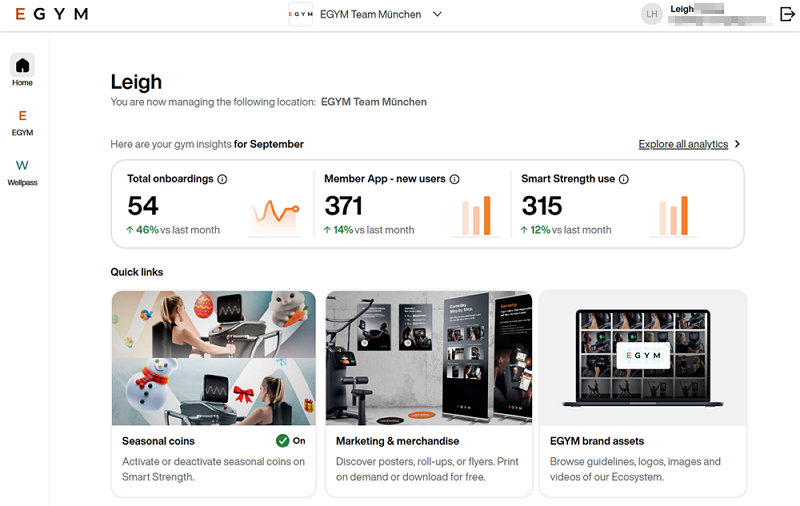
La EGYM Business Suite est la plateforme centrale pour les exploitants de salles de sport pour gérer tous les produits EGYM en un seul endroit.
Vous pouvez :
Attribuer ou supprimer les droits des entraîneurs et consulter les détails des membres dans toute votre organisation
Configurer des paramètres tels que le Mode Invité, Gameday, la customisation saisonnière des pastilles et la connexion des balances.
Gérer votre inventaire de salle de sport (reportez-vous au EGYM Genius: Gym Inventory Guide)
Surveiller l'utilisation, l'intégration, l'engagement et la performance du personnel en utilisant l'analyse
Gérer ou consulter tous les produits EGYM, y compris le EGYM Fitness Hub, EGYM Smart Strength, EGYM Smart Flex, EGYM Smart Cardio, Branded Member App, EGYM Trainer App et EGYM Wellpass
Accéder à des ressources supplémentaires, telles que le support client et les documents marketing
What is the gym inventory?
The gym inventory is a feature within the EGYM Business Suite designed specifically to support EGYM Genius. It allows gym operators to catalog and manage all training equipment, from strength machines to free weights, cardio machines, and functional equipment. This creates a structured and accurate view of available equipment that EGYM Genius uses to generate customized, AI-powered training plans.
Why should I use the gym inventory?
The gym inventory ensures that your facility's resources are used to their full potential. By cataloging both digital and non-digital equipment, you provide EGYM Genius with the data needed to create personalized training plans that cater to member goals while streamlining operations for gym staff.
Enhanced training experiences for members
Personalized workouts across equipment: EGYM Genius uses your full inventory to provide tailored plans that incorporate strength, cardio, flexibility, and functional equipment, helping members achieve their fitness goals effectively.
Detailed settings for optimal use: Genius provides precise machine settings, such as seat height and resistance, along with training weight data. This ensures workouts are efficient, safe, and easy to follow across all equipment.
Comprehensive guidance: Members benefit from specific weight, rep, and exercise recommendations across all equipment types, ensuring workouts are both productive and engaging.
Improved efficiency for operators
Streamlined inventory management: The gym inventory tool simplifies the process of cataloging, editing, and updating equipment, ensuring trainers and Genius always have access to the most accurate data.
Enhanced trainer support: Trainers can rely on the inventory to provide quick and accurate guidance to members, reducing time spent troubleshooting or adjusting plans manually.
Maximized equipment utilization: By ensuring all equipment is represented in the inventory, you help Genius create balanced plans that use the full range of your facility's resources, reducing underutilization of equipment.
By thoroughly setting up and regularly maintaining your gym inventory, your facility empowers EGYM Genius to deliver highly customized training plans that enhance member engagement, increase operational efficiency, and optimize the use of your equipment.
Input your gym inventory
Setting up the gym inventory begins with adding equipment items in bulk and individually. Follow these steps to add new equipment accurately to ensure it is fully integrated into EGYM Genius for personalized workout planning.
Before you start
Before you begin adding equipment to your gym inventory, we highly recommend you first create a complete list of all of the equipment in your gym, including the vendors, vendor lines, and equipment types. This will make the setup process much smoother and quicker.
Navigate to the gym inventory
Go to the EGYM Business Suite.
If you have multiple facilities, make sure the correct one is selected from the drop-down menu.

In the left panel, click on .
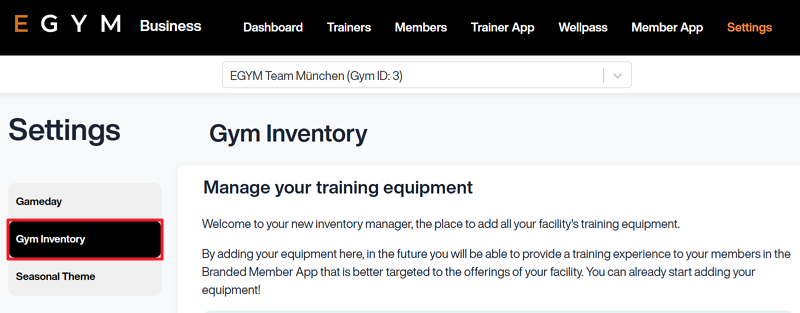
Now, you can start adding equipment.
Note
Screens may vary depending on your gym's setup (for example, features like Wellpass or Gameday may not be available).
Supported equipment types
In the gym inventory, there are five types of equipment you can add:
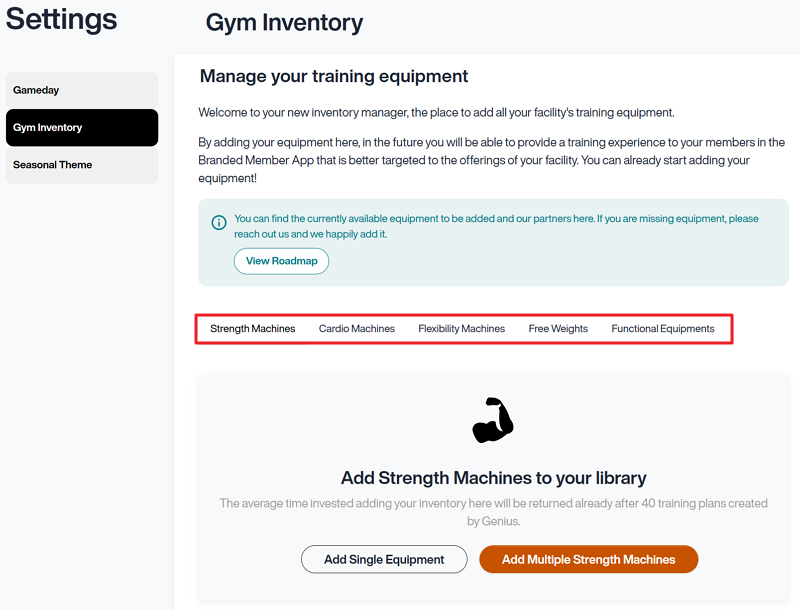
: machines designed for resistance-based training, such as EGYM Smart Strength machines, weight stack machines, and plate-loaded equipment.
: machines designed for endurance and cardiovascular training, such as treadmills, ellipticals, and bikes.
: machines designed for improving range of motion, such as EGYM Smart Flex machines.
: equipment designed for versatile and customizable strength training, such as dumbbells, kettlebells, barbell bars, and weight plates.
: equipment designed for dynamic movement training, such as medicine balls, punching bags, sling trainers, jump ropes, and more.
Add equipment
Select . This opens the gym inventory wizard.
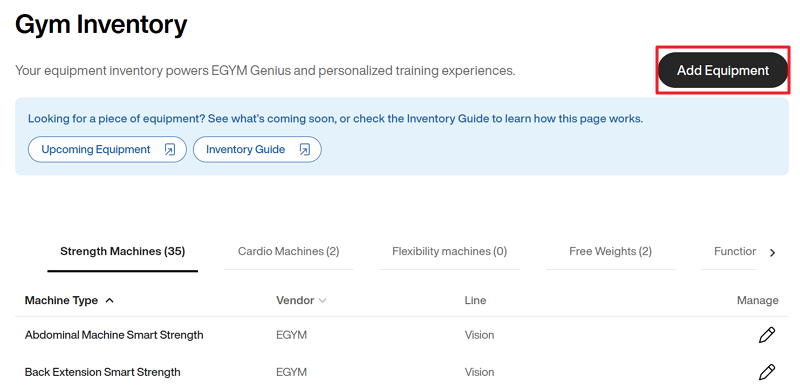
Select the category of equipment.
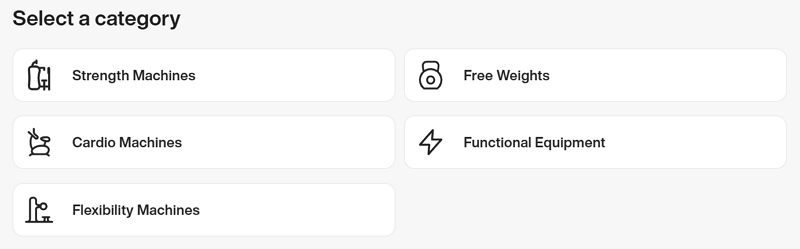
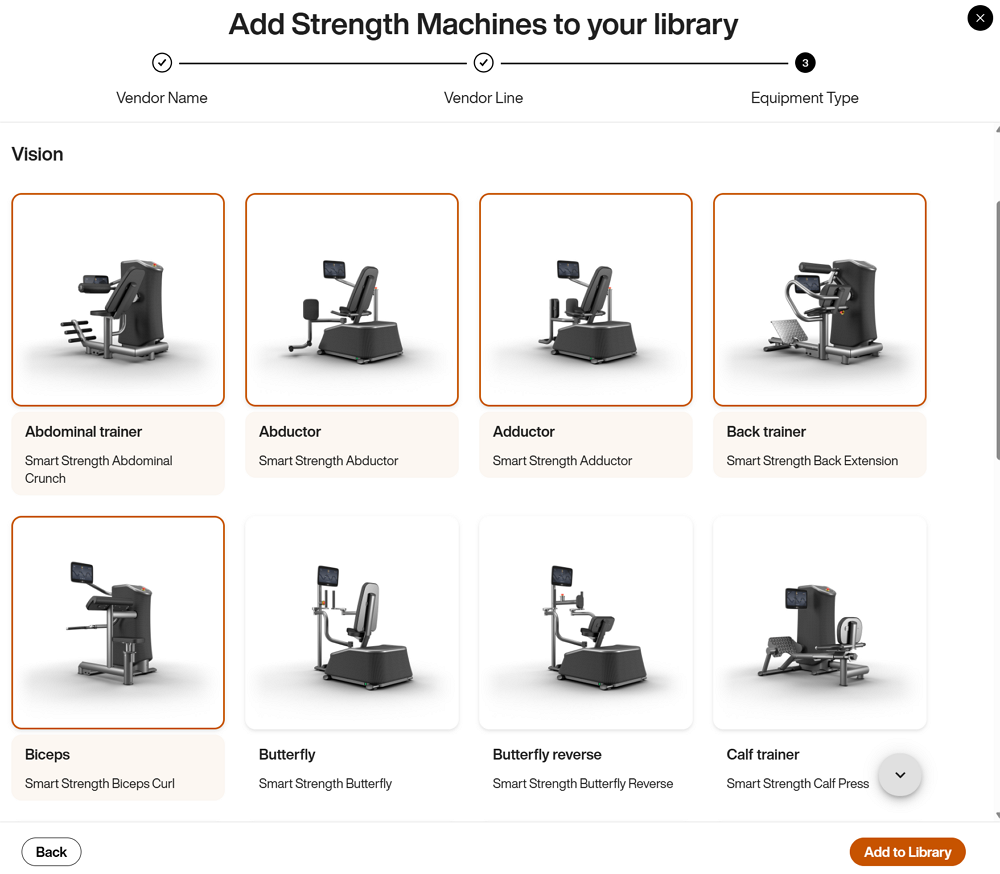
For , , and , select the vendor (brand) and product line of the equipment and click . You can only select one vendor at a time, but you can select multiple vendor lines.
Note
If you can’t find your vendor name or line, select DEFAULT and do the following:
Refer to the EGYM Genius Partner Roadmap to confirm which brands or lines are linked or planned to be linked with Genius in the future.
If your vendor or lines are not included in the partner roadmap, reach out to inventory@egym.com so we can consider adding them.
Select the equipment you want to add.
Note
The
 icon means that the equipment is EGYM Genius optimized. EGYM Genius uses extensive metadata on these machines, including machine settings, seat positions, and training weights, to generate accurate, personalized training plans. Hover over the icon to view the exact level of optimization.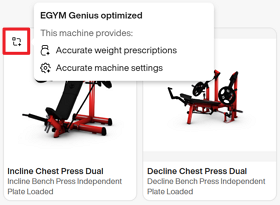
For and , fill in the minimum weights, maximum weights, and increments where required. You can also add multiple sets or options of the same equipment type.
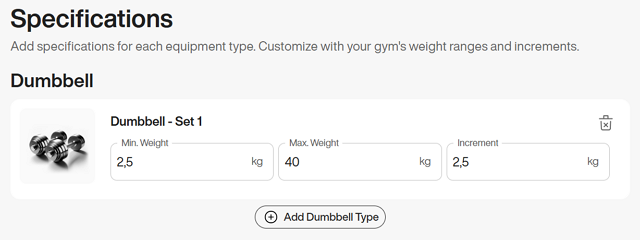 Exemple 1. Defining weights
Specifying exact weight ranges and increments helps ensure that EGYM Genius accurately calculates and suggests appropriate weights for training plans.
For example, for dumbbells, it could be:
Min. Weight: 2.5 kg / 5 lbs
Max. Weight: 40 kg / 50 lbs
Increment: 2.5 kg / 5 lbs
Once you’re done, click . The new equipment will appear in your gym inventory.
Manage your gym inventory
Maintaining an up-to-date gym inventory is essential for ensuring the continued effectiveness of EGYM Genius training plans. Your inventory is the foundation for creating AI-powered, personalized workout experiences tailored to your facility’s equipment.
Any changes made to your inventory are automatically applied and go live shortly after saving, ensuring that training plans remain accurate and aligned with your current setup. By keeping your inventory accurate, you maximize the value of your equipment, optimize training plans, and provide members with a seamless and enjoyable experience.
Why regular updates matter
Accuracy in training plans: New equipment enables Genius to offer more varied and personalized workouts, while removing outdated or unavailable equipment ensures training plans remain realistic and actionable.
Member satisfaction: Accurate inventory avoids mismatched workouts, ensuring members have access to the equipment listed in their plans.
Operational efficiency: Keeping the inventory current helps trainers support members effectively and ensures seamless coordination across your team.
Add new equipment
When new equipment is introduced to your gym, it’s essential to add it to your gym inventory as soon as possible to ensure that it can be utilized in Genius training plans.
Update equipment
Over time, equipment may need to be updated or removed due to wear, replacement, or upgrades. Regularly reviewing and editing your inventory ensures Genius recommendations remain accurate and prevents confusion for members and trainers.
Edit equipment
Under the equipment type, find the item you want to edit and click the
 pencil icon.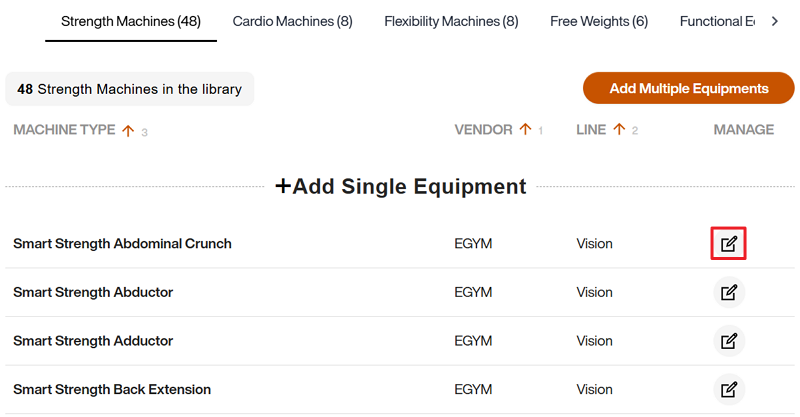
Note
For equipment that doesn't have weight information, such as a flat bench or pull up bar, you can directly delete at this point.
Make edits depending on the equipment type:
, , and : Edit the Vendor and Line as needed. Then, click .

and : Edit weights or add equipment as needed. Then, click .
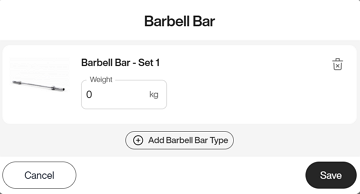
Remove equipment
Under the equipment type, find the item you want to edit and click the
pencil icon.Note
For equipment that doesn't have weight information, such as a flat bench or pull up bar, you can directly delete at this point.
Click on the trash bin icon.
In the pop-up window, click again to confirm.
Note
For and , if you have more than one set of the same equipment, you can delete them individually in the pop-up window. You must delete all sets to remove the equipment completely.
Best Practices
Customize your exercise library
Once the gym inventory is set up, Genius filters exercises based on your available equipment, ensuring compatibility and relevance. These exercises are then further refined through the default EGYM “master library.” This process determines which exercises appear in the exercise library for the EGYM Trainer App and Member App, complete with generic equipment details and accompanying MP4 files (videos).
The exercise library can be fully customized to better reflect your gym’s unique offerings and member needs, further enhancing the personalization and effectiveness of training plans.
We recommend customizing this library to:
ensure that only relevant exercises are available in the Trainer App and Member App.
ensure that members can easily locate machines and perform exercises independently.
tailor the apps to fit your gym’s brand image.
Customize the exercise library
Go to the EGYM Business Suite.
Go to > .
Select > .
Next to the exercise library for your gym, click the eye icon.
Scroll down or search to look through exercises and classes.
Turn exercises and classes on or off as needed.
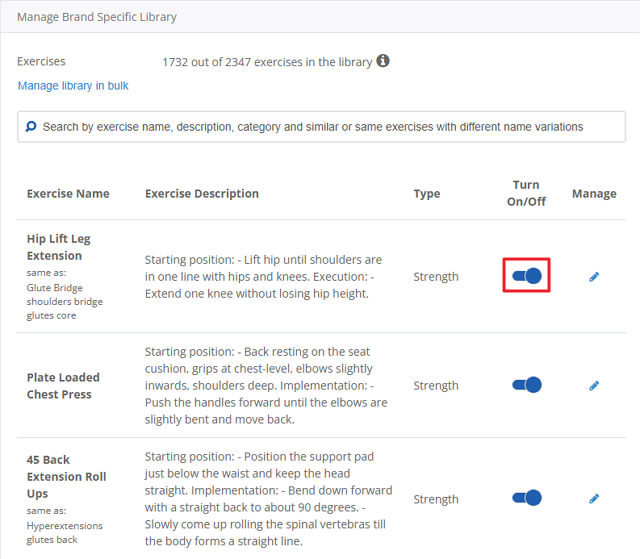
Note
If you have EGYM Smart Strength or Smart Flex machines, make sure they’re also turned on.
On an exercise or class, click the eye icon. Change the name, description, and icon (image or video) as needed.
Avertissement
Do not completely change exercises. Doing so will cause issues with Genius training plans.
If you need to create custom exercises or classes, refer to Create custom exercises for instructions.
You may also submit a exercise request to via your Customer Success Manager so our Sport Science team can consider adding it. In your request, make sure to include the exercise name, description, and a link to an example video.
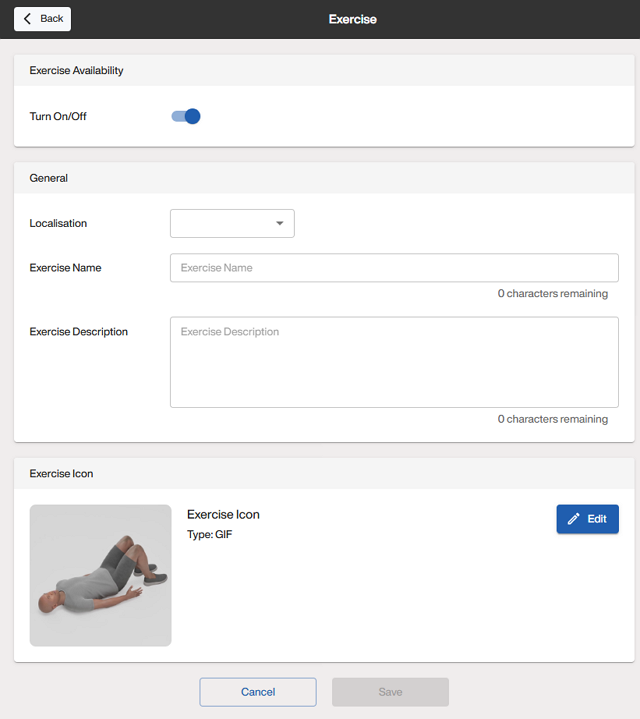
Note
Training plans in the Member App and Trainer App automatically include the vendor names, such as "EGYM". To prevent duplication, we don't recommend adding vendor names manually.
Create custom exercises
If needed, you can create custom strength exercises ("CSE") or custom fitness classes ("CFC") for your gym using the placeholder exercises in the exercise library. These exercises are already mapped to a body region.
Important
Note that Genius will not prescribe custom strength exercises.
Also, Genius cannot calculate smart weight recommendations for custom strength exercises even if trainers or members manually add them to their plans.
Go to the EGYM Business Suite.
Go to > .
Select > .
Next to the exercise library for your gym, click the eye icon.
Use the search bar to search for "CSE" (Custom Strength Exercises) or "CFC" (Custom Fitness Classes).
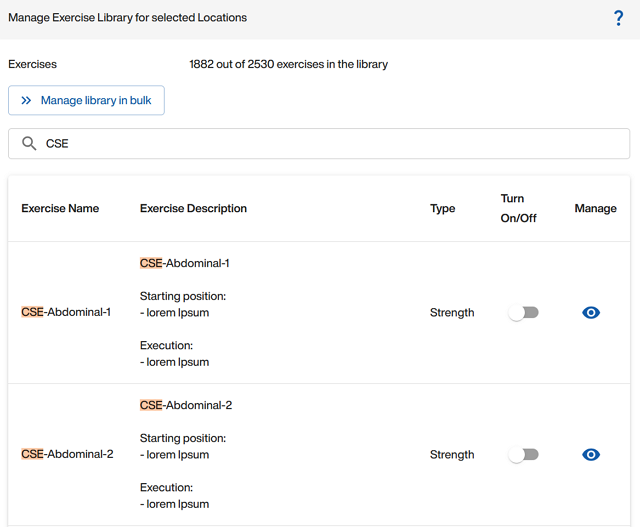
Find the exercise type or class you want to customize. For example, for a custom abdominal exercise, you could select "CSE-Abdominal-1".
On an exercise or class, click the eye icon. Change the name, description, and icon (image or video) as needed.
Include EGYM machines
When setting up your gym inventory for Genius, make sure to include all of your EGYM Smart Strength and Smart Flex machines. These items are not automatically added to your gym inventory and you must add them manually.
Including your EGYM machines in your gym inventory ensures that Genius can leverage their advanced features, such as automatic resistance adjustments and personalized settings, to create tailored, data-driven workouts for your members.
Set up single and multi-station equipment
When adding equipment to your gym inventory, it's important to distinguish between multistation and single station (standalone) equipment to ensure proper setup for Genius training plans.
Accurately cataloging multistations and their components ensures Genius training plans account for all available exercise options, improving members experience and maximizing equipment utilization.
Multistation equipment
Add each part of the multistation separately and ensure it is labeled as part of the multistation (includes “Multistation” in the name).
If you have a pulley multistation, you need to add each part. This would involve some combination of the following parts:
Multistation Pulley
Multistation Crossover Pulley
Multistation Lat Pull Double Cable Pulley
Multistation Low Row Double Cable Pulley
Multistation Triceps Curl Pulley
Single station (standalone) equipment
On the other hand, you should add single stations individually as standalone equipment.
If you just have a standalone Lat Pull Pulley or Low Row Double Cable Pulley, then you should add them individually as such. These items should NOT be added as multistation equipment.
Add weight plates
Always add weight plates to your gym inventory for equipment requiring plate-loaded exercises and free weight equipment.
Adding weight plates ensures that Genius can accurately generate recommendations for exercises using plate-loaded equipment, such as squat racks, barbells, or plate-loaded machines. Without this information, Genius cannot suggest appropriate training weights for these exercises.
Follow the instructions for Add equipment, selecting and Weight Plate.
Enter the you have for the weight plate.
Troubleshooting Genius
If you experience issues with EGYM Genius, such as missing exercises or inaccurate recommendations, make sure your gym inventory is accurate and complete. However, while inventory accuracy plays a key role, other Genius features and settings might also affect training plan generation.
For comprehensive troubleshooting steps beyond the gym inventory, refer to EGYM Genius: Operational Questions and Troubleshooting. This document covers common issues and solutions across all aspects of EGYM Genius, from common questions to troubleshooting, helping you resolve problems quickly and effectively.
Learn More
EGYM Support
Fill out our contact form if you have any concerns or need assistance setting up your gym inventory or Business Suite.