How to use Genius Chat Beta
Depending on whether you want to edit your Genius training plan or just today's workout session, do one of the following:
Genius Chat Beta for training plans:
In the Genius widget (), tap .
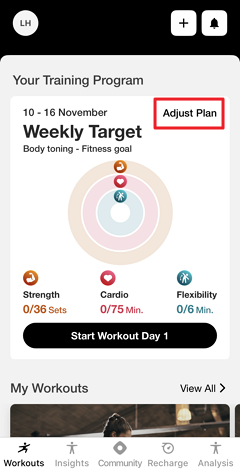
Genius Chat Beta for workout sessions:
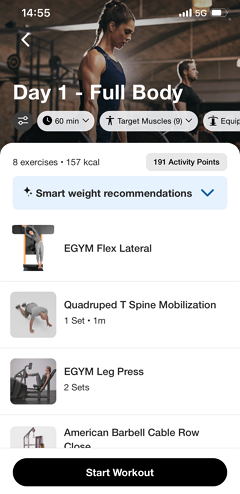
Under , tap (1, 2, 3).
Or, navigate to , tap , and select (1, 2, 3, etc.).
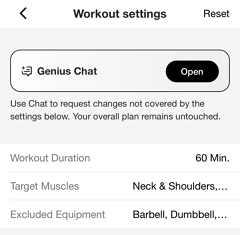
Tap the settings icon at the top of the screen.
Open .
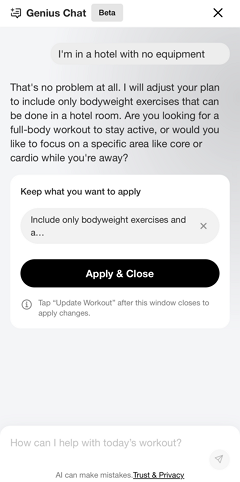
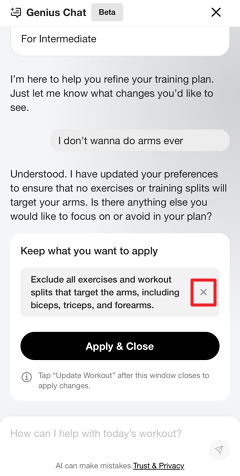
Type a short description of your current situation. Refer to What to tell Genius Chat Beta for more information. You can continue the conversation to refine the changes.
Notat
Tap the x icon to remove suggested changes as needed.
You can also come back later to remove applied changes.
Notat
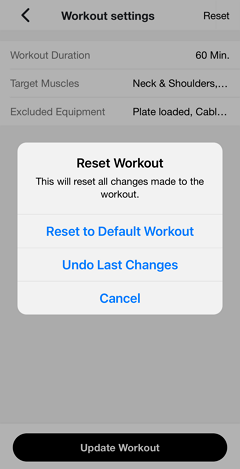
If needed, you can always go back to the workout settings and tap > to revert to the original version.
Once done, tap .
Review the settings summary. Tap on the field to make further adjustments. Adjust the other settings as needed.
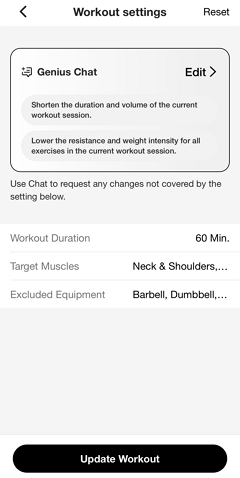
Tap .
Genius will review your input and adjust your training plan or workout session based on what you've described.
Refer to How Genius interprets your input for more information.