Edit Genius workout
Genius training plans are designed for you, but you can adjust them before or during your workout as needed.
Enter a workout via > or > select workout. You can edit that day's workout via the following options.
Uwaga
These options only affect that day's workout. Future workouts won't be affected.
Tap on an item at the top of the screen.
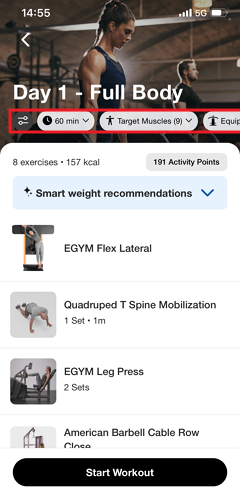
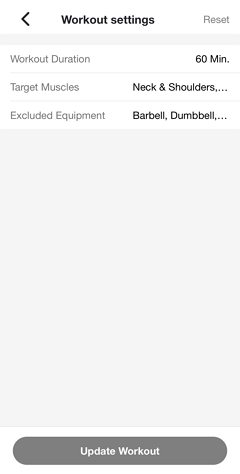
Make adjustments as needed. Then, tap .
Uwaga
If needed, you can always go back to the workout settings and tap > to revert to the original version.
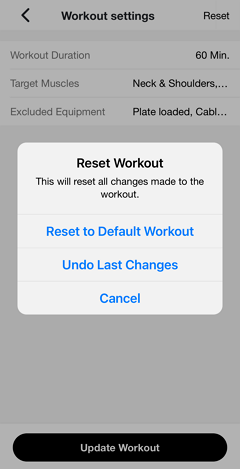
Genius will regenerate that day's workout according to the new preferences. You will get a notification once it's ready.
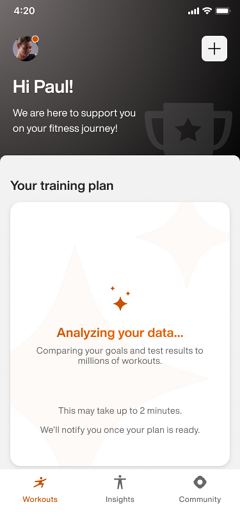
Uwaga
Make sure notifications are turned on in your device's settings. Otherwise, check back later in the app.
Ważne
For gym owners:
To ensure members receive push notifications, your gym’s Member App must be able to publish updates. Make sure the account holder has accepted all required Apple App Store Connect agreements, including both the standard license agreement and any required Paid Apps agreements.
For Android, if your gym operates its own Google Play developer account, you must accept the Google Play Developer Distribution Agreement.
Uwaga
These options only affect that day's workout. Future workouts won't be affected.
Next to an exercise, tap the replace icon.
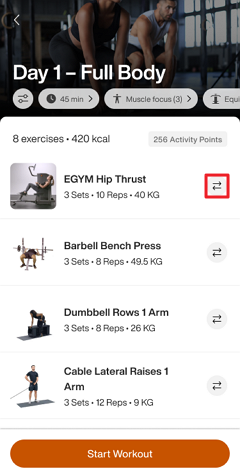
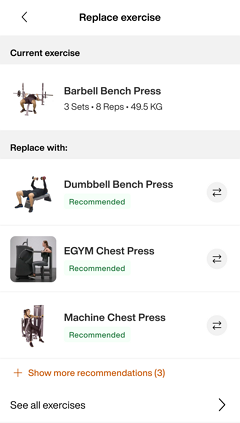
Select an exercise to replace the original.
You can select from the recommended exercises, or tap to find a specific one.
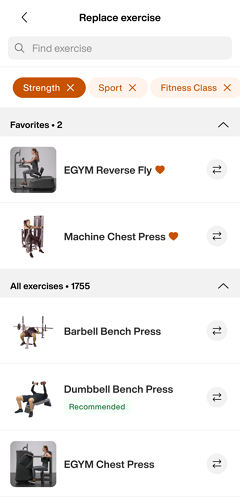
Once you're done, tap to begin.
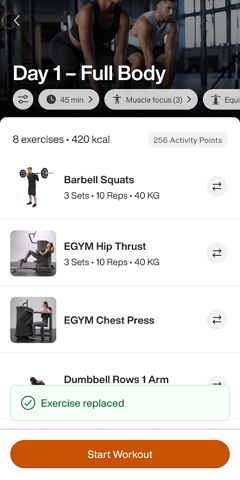
Uwaga
Changes made during a workout won’t impact future workouts.
In a workout, tap +.
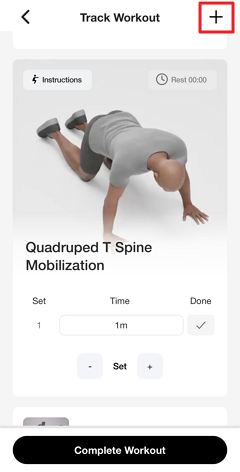
Edit the workout:
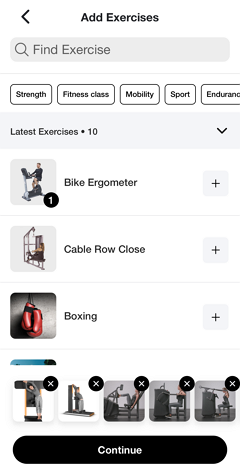
Remove an exercise: At the bottom of the page, tap x on an exercise.
Add an exercise: Tap + next to an exercise.
Reorder exercises: Remove (x) and add (+) exercises in the desired order.
Tap when done.
During your workout, you can also:
Press down on the ☰ icon to drag-and-drop exercises to reorder them.
Tap the three-dot menu icon ⋮ next to the exercise.
A menu appears with three options: , , and .
Replace
Replace an exercise during your workout.
You can select a Genius-recommended alternative based on your fitness level, target muscles, and available equipment.
Tap the three-dot menu icon next to an exercise, in the tab.
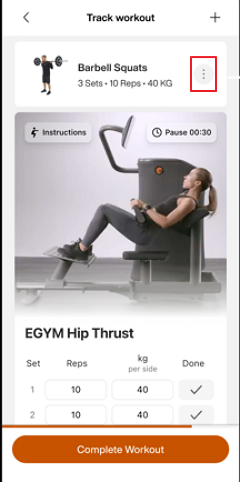
Select
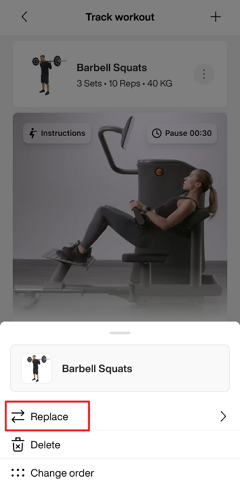
The replace exercise screen opens showing:
Current exercise: The exercise you're replacing.
Replace with: Genius-recommended alternatives.
Show more recommendations:Tap to see additional options.
See all exercises: Access the full exercise library.
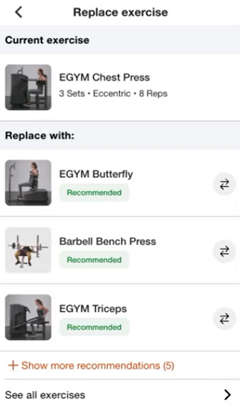
Select the exercise you want to use instead. Tap the exchange icon
 next to it or tap the exercise name.
The replacement is applied immediately. The workout detail screen updates with the new exercise.
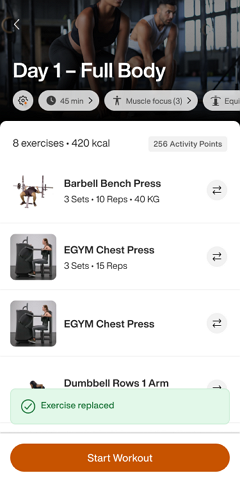
Uwaga
If you don't see the exercise you want in the recommended list:
Tap Show more recommendations to expand the list.
Or tap See all exercises to browse the entire exercise library and search by name.
Delete
Delete removes an exercise from your workout for that day. The exercise count and remaining workout duration update automatically.
Tap the three-dot menu icon next to an exercise in the tab.
Select .
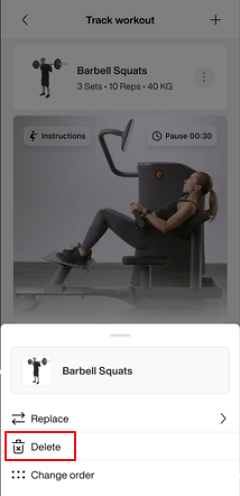
The exercise is removed immediately. A notification confirms:
Undo a deletion
If you change your mind, tap in the toast notification before it disappears. The exercise is restored to your workout.
Uwaga
You can also delete an exercise by swiping right-to-left on the exercise card. This provides a quick alternative to using the menu.
Change order
Reorder exercises to customize the sequence of your workout for that day.
Tap the three-dot menu icon ⋮ next to any exercise in the tab.
Select .
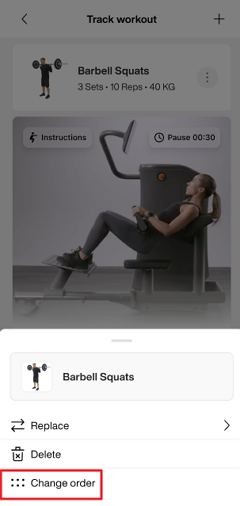
The Change order screen opens, displaying all exercises with drag handles
 on the left side.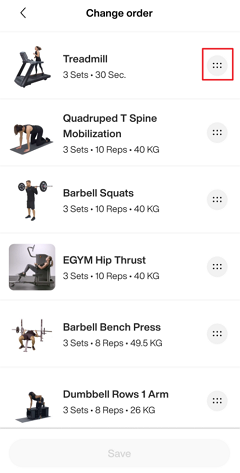
Press and hold the drag handle
next to an exercise and drag it to a new position.Once you've arranged exercises the way you want, tap at the bottom.
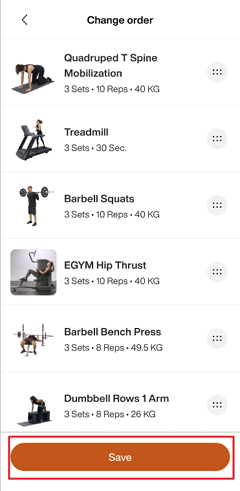
The workout detail screen updates with the new order.