Track your workout
Bemærk
For your first Genius workout, tap and follow the on-screen guidance to learn how to track your exercises.
To start your Genius training plan:
On your mobile device, launch the Wellpass app and go to .
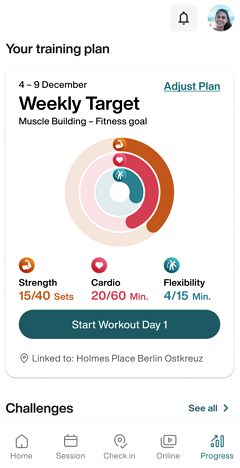
Under , tap (1, 2, 3).
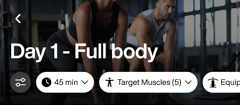
If needed, tap the settings at the top of the screen to edit the , , and . Tap when done.
Tap .
Do each exercise and set individually. Some exercises are tracked automatically.
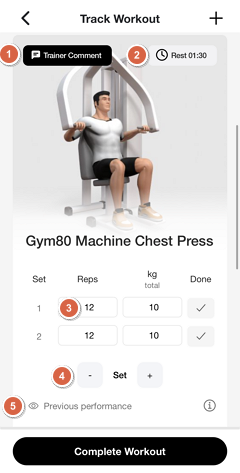
Tap or (if available) for detailed exercise guidance and recommended machine settings.
Tap to enable or disable breaks between sets and adjust the duration. Genius suggests rest times automatically.
Tap the different fields (for example: , , /) to manually adjust them.
Tap - or + to remove or add sets.
Bemærk
The availability of these options may vary depending on the type of machine or exercise.
On some exercises, tap to show or hide your progression over time.
When you complete a set or exercise, tap .
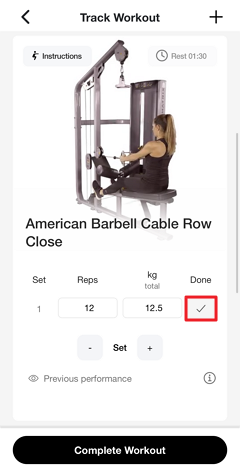
Once all sets are complete, tap .
Tap . Then, tap on the workout to view its summary.