Generate the first training plan
You can complete the onboarding process in the EGYM Trainer App for your member via the following steps. Alternatively, the member preference evaluation can also be done directly on the EGYM Fitness Hub.
Poznámka
If your gym uses health information, fill out the Genius member preferences first. Some preferences (workout days per week, workout duration, experience level, and training goal) will automatically transfer from Genius preferences to health information, which serves as an extension of the Genius data.
Create a new Genius plan
Launch the EGYM Trainer App and go to .
Search and tap to select a member.
Tap .
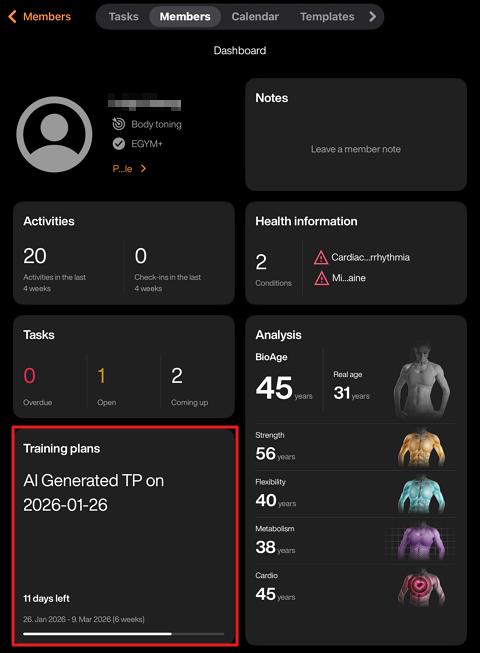
Tap the + icon in the middle of the screen. Or, tap the + icon in the top right and then tap .
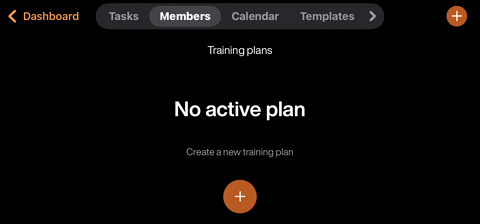
Do one of the following depending on your situation:
If the member has not completed the initial screening, including body analysis and strength assessments, you will see the following screen:
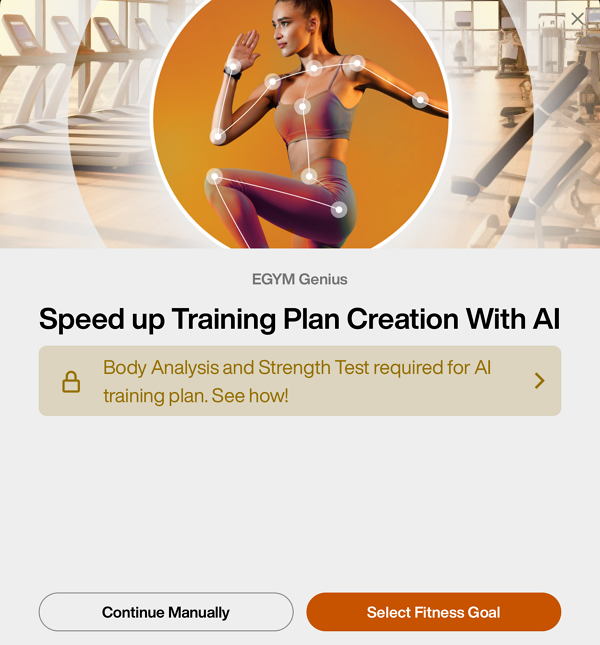
At this point, you can tap to fill out the member preferences. However, to unlock the ability to generate training plans with Genius, you need to:
Have your member log in to the Fitness Hub.
Collect your member’s body composition information.
Test the member’s strength on Smart Strength machines.
If the member has completed the initial body analysis and assessments, you will see the following screen:
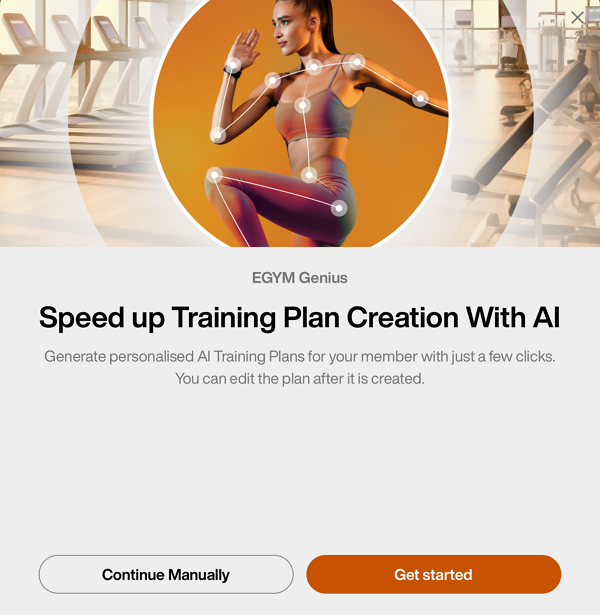
Tap to fill out the member preferences and generate a plan.
Fill out training preferences
Select your member’s experience level:
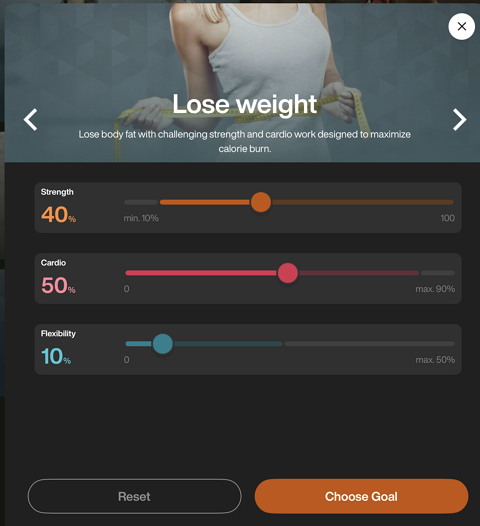
Select your member’s fitness goal:
In the fitness goal window, you can manually adjust the Strength, Cardio, and Flexibility parameters for each goal. Once decided, tap .
Poznámka
For more information about these sliders and how they work, refer to How does fitness goal adjustment work?
Select how many times (1 - 7 days) a week the member will work out.
Select the average duration (15 - 180 minutes) of each workout.
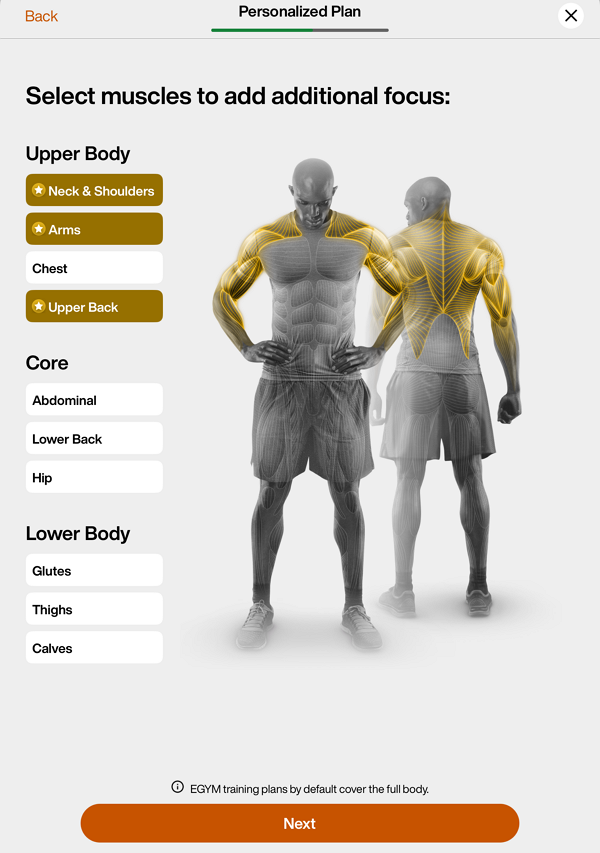
Select muscle groups for extra focus. Tap .
Poznámka
Genius training plans include all muscle areas by default.
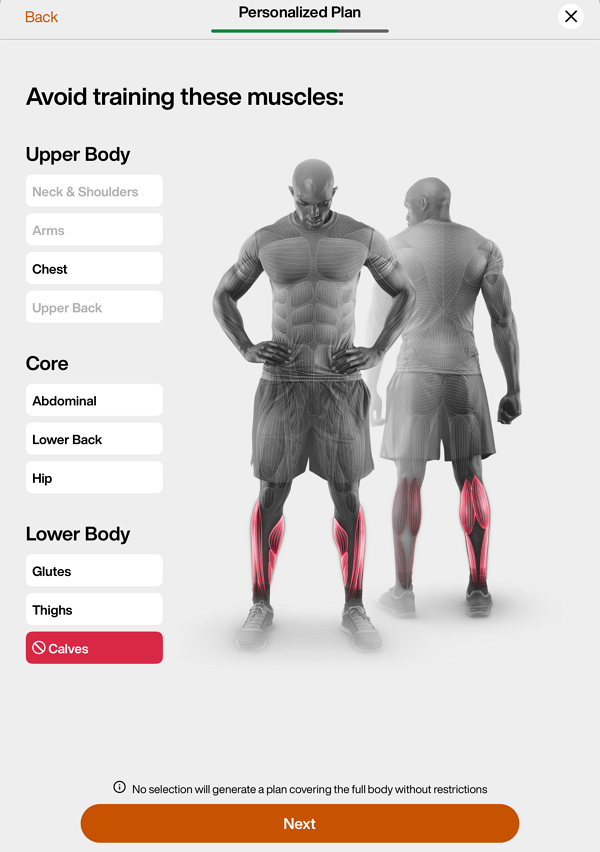
Select muscle groups to avoid. Tap .
Poznámka
Only exercises that primarily target the excluded muscle group will be removed from Genius training plans. Exercises that engage the muscle indirectly—where less than 40% of its capacity is utilized—will still be included.
For example, if you exclude Calves, exercises like calf raises will be omitted, but squats may still appear in the training plan.
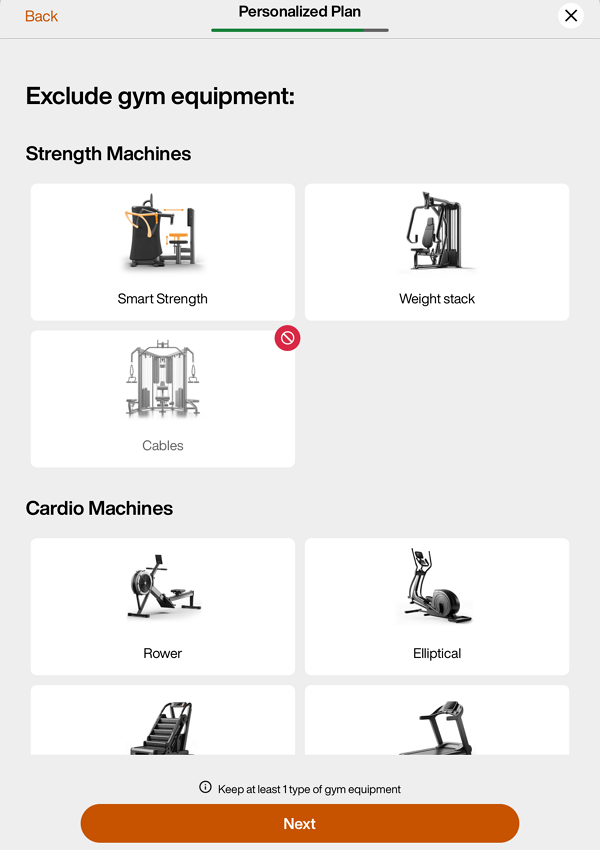
Select equipment to exclude. Tap .
Poznámka
Even if a member doesn’t have an EGYM+ membership, they will still get EGYM Smart Strength machines in their Genius training plans. To avoid this, you can exclude EGYM Smart Strength machines in this step.
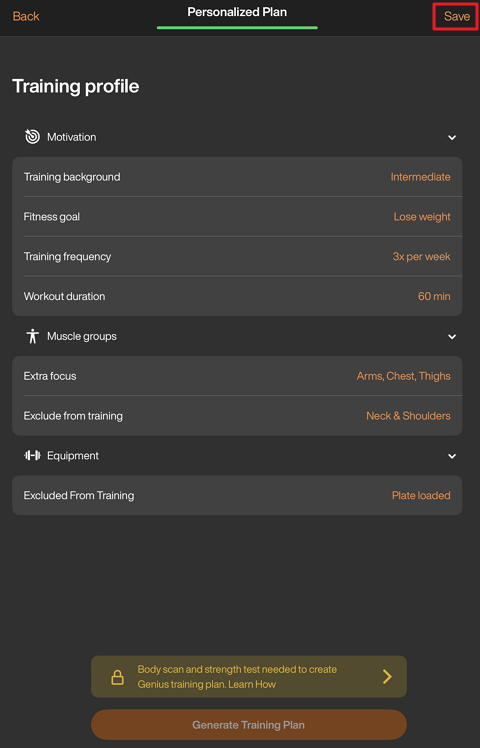
Review the plan summary. Tap any category to make changes. You can also edit these preferences later at anytime in the app.
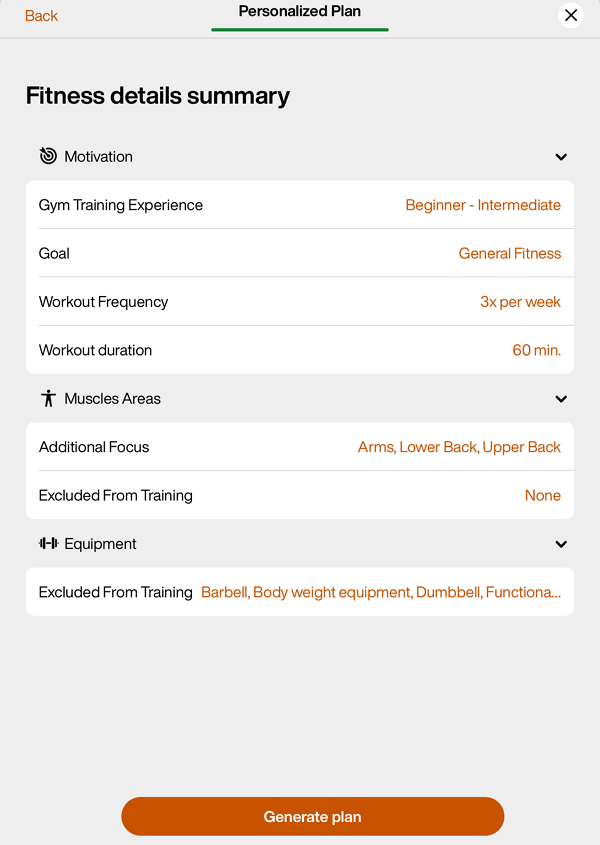
Once done, tap .
Tap to assign the plan to the member.
Poznámka
If the member has not yet completed the initial screening, such as the body composition analysis and strength assessments, tap in the top-right corner. The preferences you’ve entered will be saved and will still be available when you return to create a Genius training plan after the assessments are completed.