Update equipment
Over time, equipment may need to be updated or removed due to wear, replacement, or upgrades. Regularly reviewing and editing your inventory ensures Genius recommendations remain accurate and prevents confusion for members and trainers.
Under the equipment type, find the item you want to edit and click the
 pencil icon.
Poznámka
For equipment that doesn't have weight information, such as a flat bench or pull up bar, you can directly delete at this point.
Make edits depending on the equipment type:
, , and : Edit the Vendor and Line as needed. Then, click .

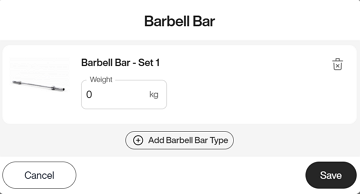
and : Edit weights or add equipment as needed. Then, click .
Under the equipment type, find the item you want to edit and click the
pencil icon.Poznámka
For equipment that doesn't have weight information, such as a flat bench or pull up bar, you can directly delete at this point.
Click on the trash bin icon.
In the pop-up window, click again to confirm.
Poznámka
For and , if you have more than one set of the same equipment, you can delete them individually in the pop-up window. You must delete all sets to remove the equipment completely.