Create individual tasks for members
Create individual tasks for members via the following steps.
Note
For repeatable workflows (like new member onboarding), refer to Task chains.
Launch the Trainer App and go to .
Search for and select the member.
Tap the section. Here you can view and tasks.
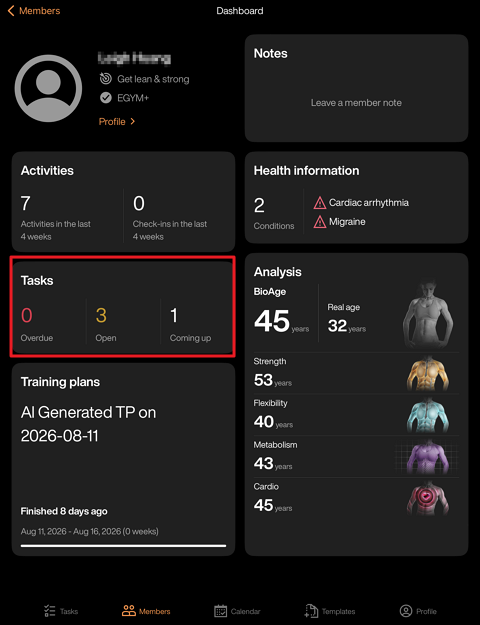
Tap the + icon.
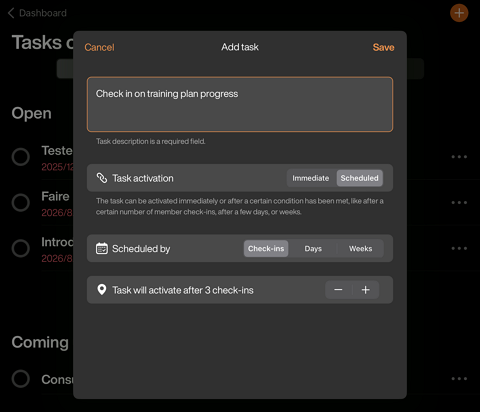
Enter the task description.
Tip
Make task descriptions specific and action-oriented (e.g., "Send updated BioAge to client with progress note" rather than just "Follow up").
Choose when the task should activate:
: The task appears upon saving.
: The task appears after a certain number of , , or , depending what you select.
Note
With Member Management Software (MMS): Check-ins count when members enter the gym via their access method.
Without Member Management Software (MMS): Check-ins count when members scan their login method on the gym floor equipment.
Once done, tap . The task will appear on the page and the member's profile according to your settings.
Note
Tasks you create in a member's profile are specific to that member.