Input your gym inventory
Setting up the gym inventory begins with adding equipment items in bulk and individually. Follow these steps to add new equipment accurately to ensure it is fully integrated into EGYM Genius for personalized workout planning.
Before you start
Before you begin adding equipment to your gym inventory, we highly recommend you first create a complete list of all of the equipment in your gym, including the vendors, vendor lines, and equipment types. This will make the setup process much smoother and quicker.
Go to the EGYM Business Suite.
If you have multiple facilities, make sure the correct one is selected from the drop-down menu.

In the left panel, click on .
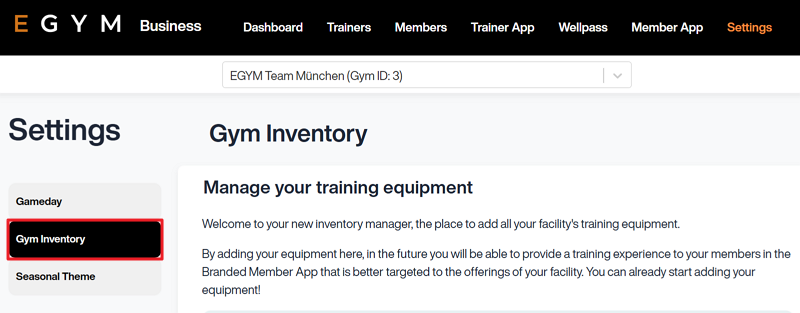
Now, you can start adding equipment.
Note
Screens may vary depending on your gym's setup (for example, features like Wellpass or Gameday may not be available).
Add equipment
There are two ways to add equipment to your gym inventory: and .
Browse library: Search and select equipment from the EGYM catalog.
Copy equipment: Replicate an existing equipment setup from another location you manage.