Manage tasks
On the page, you can do the following to manage your tasks.
Filter tasks: Use the filters on the top of the page to quickly find gym tasks for certain members:
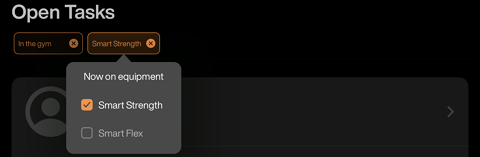
: Filter for members who are or .
: Filter for members who are currently using Smart Strength or Smart Flex machines.
Tip
Use member profile photos to quickly identify clients when managing tasks. With permission from your member, you can add their profile photo in the Trainer App:
On the page, search for and select the member.
Tap > > , and tap or .
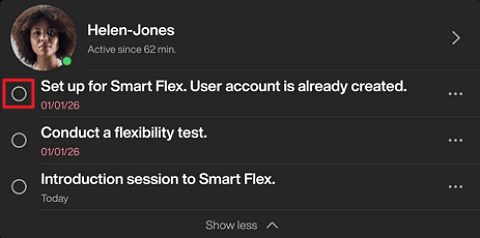
Complete a task: Tap the circle to mark the task as done.
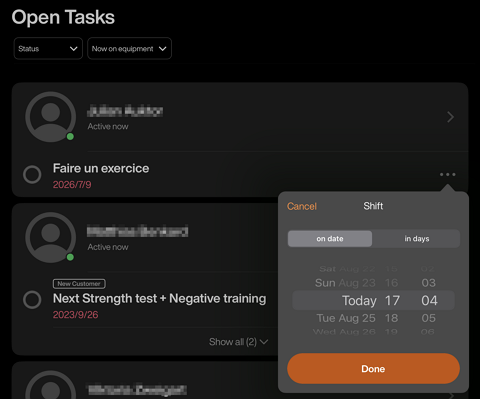
Delay a task: On the task, tap the ⋯ icon and select an exact date and time, or in how many days the task should be done.
Tip
If a member will be unavailable, delay their tasks to the date they return rather than dismissing them.
Dismiss or edit a task: Tap the member's name > . On the task, tap the ⋯ icon > or .
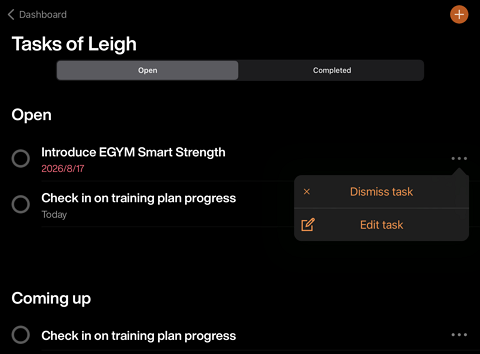
View open and completed tasks: Tap the member's name > . At the top of the screen, select or .