Create a task chain
Task chains are built as reusable templates by gym owners or trainers with the appropriate permissions.
Once created, trainers can assign task chains to members in the Trainer App.
Note
Task chains can also be created in the Business Suite. Refer to Create a task chain for instructions.
Launch the Trainer App and go to .
Tap the + icon.
Give the task chain a title, such as “Onboarding New Members."
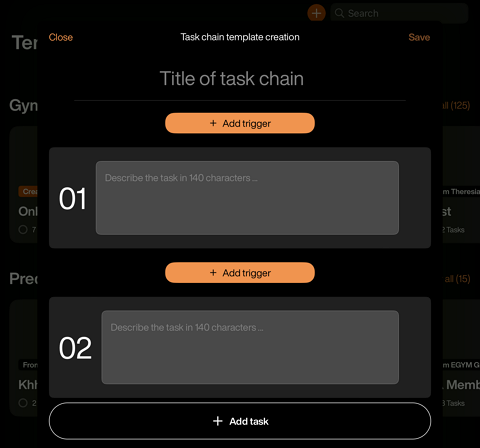
Select a trigger for the first task:
: The task starts upon assignment to a member.
: The task starts after the selected number of check-ins.
Note
With Member Management Software (MMS): Check-ins count when members enter the gym via their access method.
Without Member Management Software (MMS): Check-ins count when members scan their login method on the gym floor equipment.
: The task starts after the selected number of days.
: The task starts after the selected number of weeks.
Add the first task description, such as “Warm welcome & introduce to gym app.”
Add the next task and set its trigger relative to the previous task (e.g., "2 weeks after Task 1 activates").
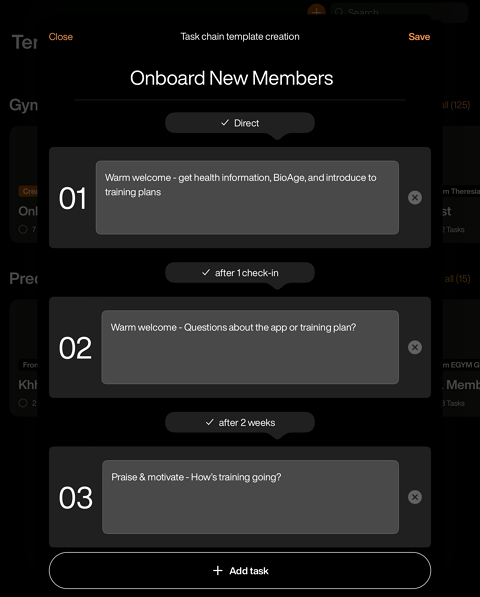
Continue adding tasks for your entire workflow. Once done, tap .