Login experience
Purpose
This article explains how to configure login devices, user interface QR codes, using the Business Suite. With these options, you can customize how members interact with your hardware and personalize the visual environment to match your gym's branding. These configurations apply globally across all your connected EGYM machines. It is recommend to finalize these settings before your machines go live to ensure a consistent, branded experience for your members from day one.
Prerequisites
Ensure you meet the following prerequisites before attempting to change configurations:
You need access to the Business Suite at http://business-suite.egym.com.
You must have admin permission.
Near-field communication (NFC) phone login must be enabled for your location by your Customer Success Manager before it appears as a selectable option.
Phone login requires built-in hardware compatibility.
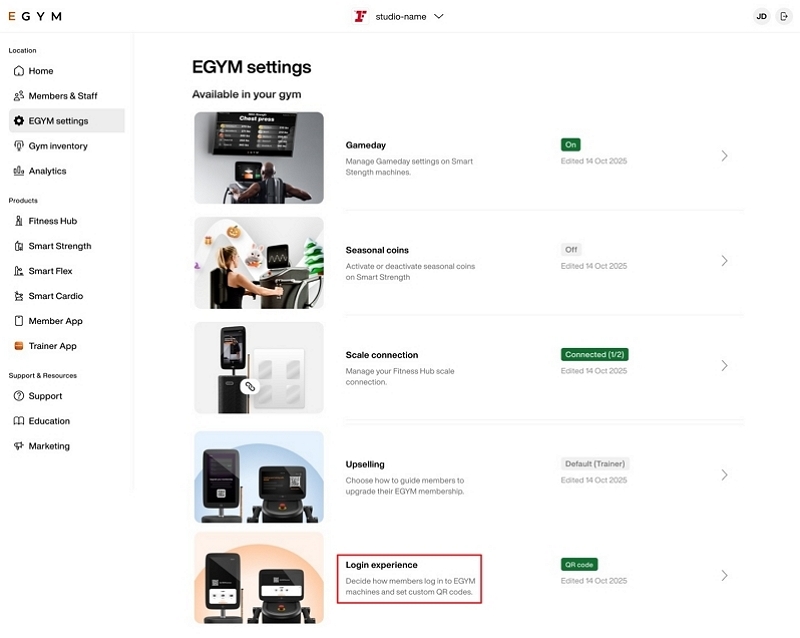
How to navigate to EGYM settings
Go to EGYM Business Suite.
If you have multiple facilities, make sure the correct one is selected from the drop-down menu.
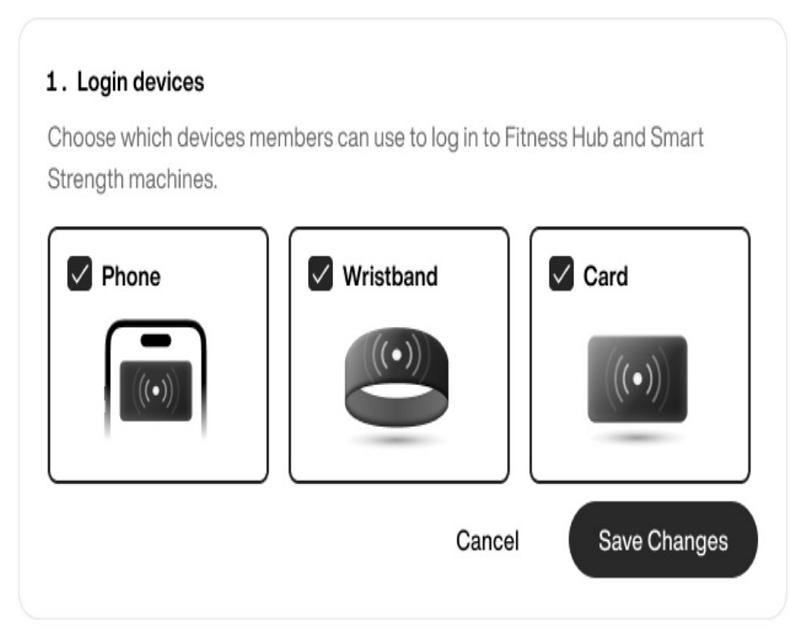
Set up login devices
The section lets you choose which devices members members can use to access your EGYM machines.
Available options
: Members tap their phone (using NFC) on the machine to log in.
: Members tap their RFID wristband on the machine to log in.
: Members tap their RFID card on the machine to log in.
Notera
Select at least one login device at all times. You can select multiple login devices. The system keeps the button disabled until you make an eligible change. Find NFC information in the reference box continuously displayed on this page.
Konfigurera maskinens QR-kod
Avsnittet styr även QR-koden som visas på EGYM-maskinernas inloggningsskärmar. Den här koden kan leda medlemmar till ditt gyms fristående app eller guida dem genom inställningen för telefoninloggning (NFC).
Notera
Om du vill konfigurera en QR-kod måste en RFID-enhet vara aktiverad.
Från , navigerar du till avsnittet Inloggningsupplevelse.
Under , väljer du det alternativ som passar din anläggning.
Om du väljer QR-kod, ska du ange din destinations-URL i det angivna fältet.
Välj . Bekräfta ändringarna i bekräftelserutan.
Om en medlem redan har konfigurerat telefoninloggning, kommer skanning av QR-koden omedelbart att öppna NFC-funktionen i din gym-app. Mer information finns under Add gym pass to your digital wallet
Notera
Systemet kontrollerar att anpassade URL:er matchar ett giltigt webbformat; det verifierar inte om destinationslänken är live eller aktiv.