Redigera Genius-träningspass
Genius-träningsprogram är utformade för dig, men du kan justera dem före eller under ditt träningspass vid behov.
Gå in i ett träningspass via > eller > välj träningspass. Du kan redigera dagens träningspass via följande alternativ.
Notera
Dessa alternativ påverkar endast dagens träningspass. Framtida träningspass påverkas inte.
Tryck på ett objekt högst upp på skärmen.
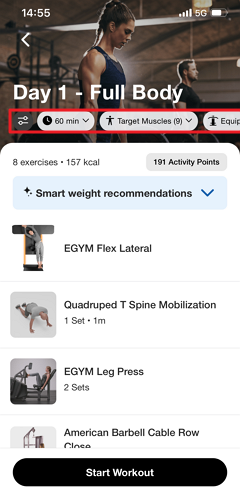
Gör justeringar vid behov. Tryck sedan på .
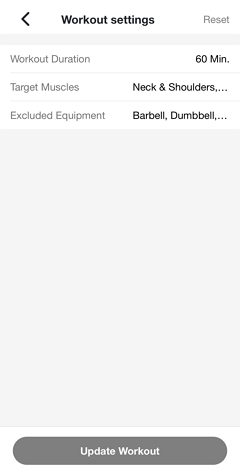
Notera
Vid behov kan du alltid gå tillbaka till träningsinställningarna och trycka på > för att återgå till den ursprungliga versionen.
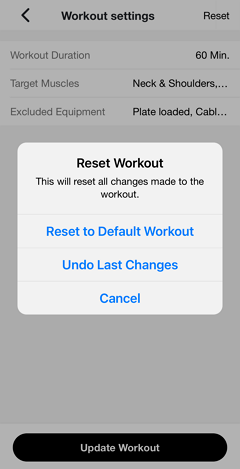
Genius kommer att återskapa dagens träningspass enligt de nya inställningarna. Du får en avisering när det är klart.
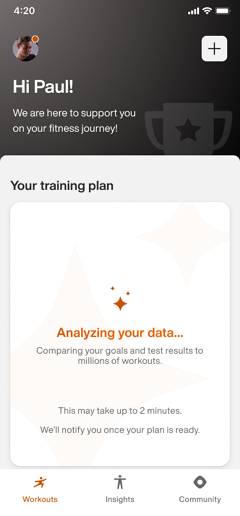
Notera
Se till att aviseringar är aktiverade i enhetens inställningar. Annars kan du kolla i appen senare.
Viktigt
För gymägare:
För att säkerställa att medlemmar får push-aviseringar måste ditt gyms Member App kunna publicera uppdateringar. Se till att kontoinnehavaren har godkänt alla nödvändiga Apple App Store Connect-avtal, inklusive både standardlicensavtalet och eventuella nödvändiga avtal för betalappar.
För Android, om ditt gym använder ett eget Google Play-utvecklarkonto, måste du godkänna Google Play Developer Distribution Agreement.
Notera
Dessa alternativ påverkar endast dagens träningspass. Framtida träningspass påverkas inte.
Tryck på ersätt-ikonen bredvid en övning.
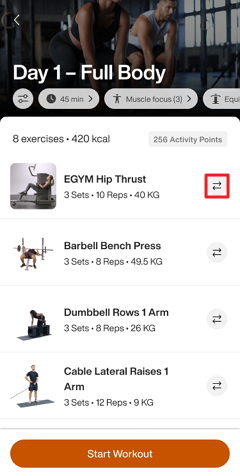
Välj en övning för att ersätta den ursprungliga.
Du kan välja bland de rekommenderade övningarna, eller trycka på för att hitta en specifik.
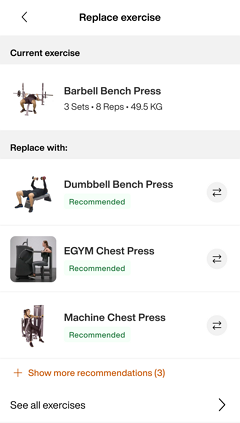
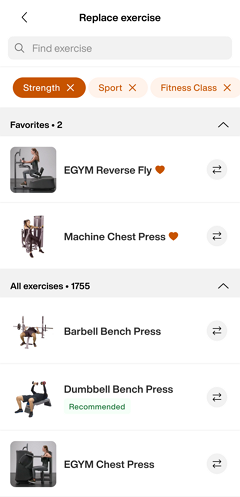
När du är klar trycker du på för att börja.
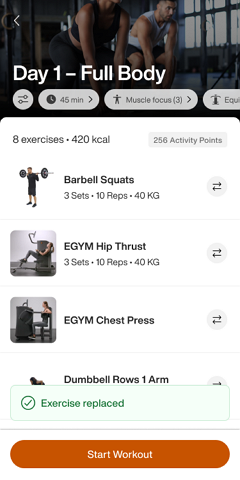
Notera
Ändringar som görs under ett träningspass påverkar inte framtida träningspass.
Under ett träningspass trycker du på +.
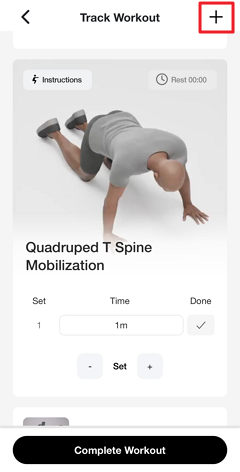
Redigera träningspasset:
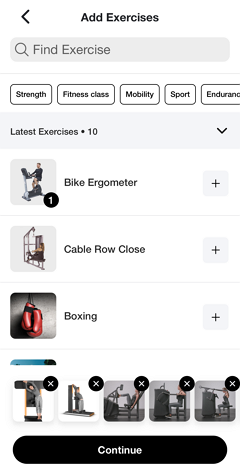
Ta bort en övning: Längst ner på sidan trycker du på x vid en övning.
Lägg till en övning: Tryck på + bredvid en övning.
Ändra ordning på övningar: Ta bort (x) och lägg till (+) övningar i önskad ordning.
Tryck på när du är klar.
Under ditt träningspass kan du även göra följande:
Trycka ner ☰-ikonen för att dra och släppa övningar för att sortera om dem.
Justera set, repetitioner, varaktighet, vilotid och mer vid behov.
Tap the three-dot menu icon ⋮ next to the exercise.
A menu appears with three options: , , and .
Replace
Replace an exercise during your workout.
You can select a Genius-recommended alternative based on your fitness level, target muscles, and available equipment.
Tap the three-dot menu icon next to an exercise, in the tab.
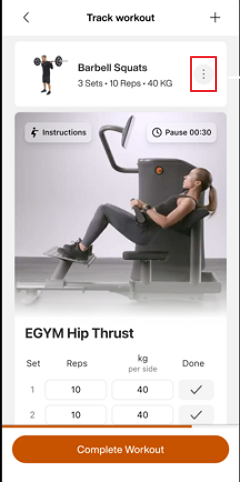
Select
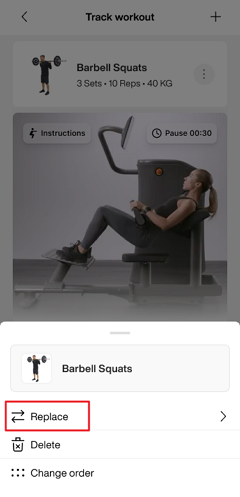
The replace exercise screen opens showing:
Current exercise: The exercise you're replacing.
Replace with: Genius-recommended alternatives.
Show more recommendations:Tap to see additional options.
See all exercises: Access the full exercise library.
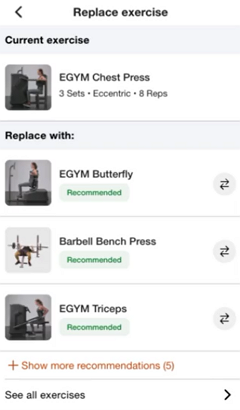
Select the exercise you want to use instead. Tap the exchange icon
 next to it or tap the exercise name.
The replacement is applied immediately. The workout detail screen updates with the new exercise.
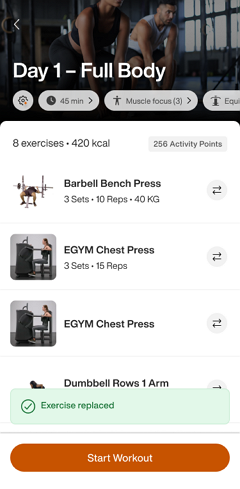
Notera
If you don't see the exercise you want in the recommended list:
Tap Show more recommendations to expand the list.
Or tap See all exercises to browse the entire exercise library and search by name.
Delete
Delete removes an exercise from your workout for that day. The exercise count and remaining workout duration update automatically.
Tap the three-dot menu icon next to an exercise in the tab.
Select .
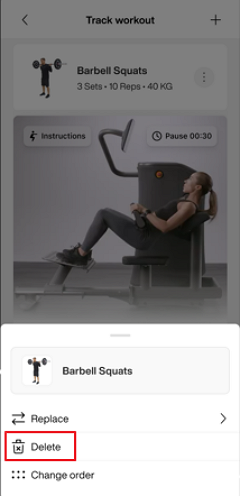
The exercise is removed immediately. A notification confirms:
Undo a deletion
If you change your mind, tap in the toast notification before it disappears. The exercise is restored to your workout.
Notera
You can also delete an exercise by swiping right-to-left on the exercise card. This provides a quick alternative to using the menu.
Change order
Reorder exercises to customize the sequence of your workout for that day.
Tap the three-dot menu icon ⋮ next to any exercise in the tab.
Select .
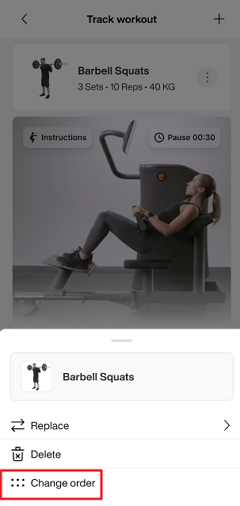
The Change order screen opens, displaying all exercises with drag handles
 on the left side.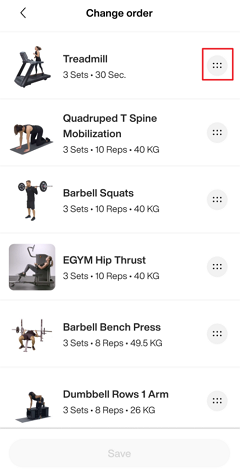
Press and hold the drag handle
next to an exercise and drag it to a new position.Once you've arranged exercises the way you want, tap at the bottom.
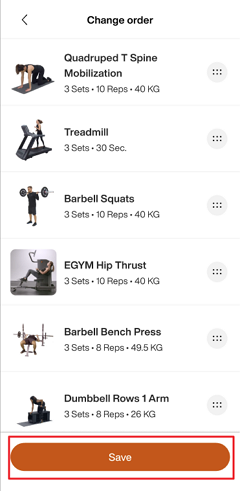
The workout detail screen updates with the new order.