App settings & location details
This page contains settings for customizing your gym's Member App experience.
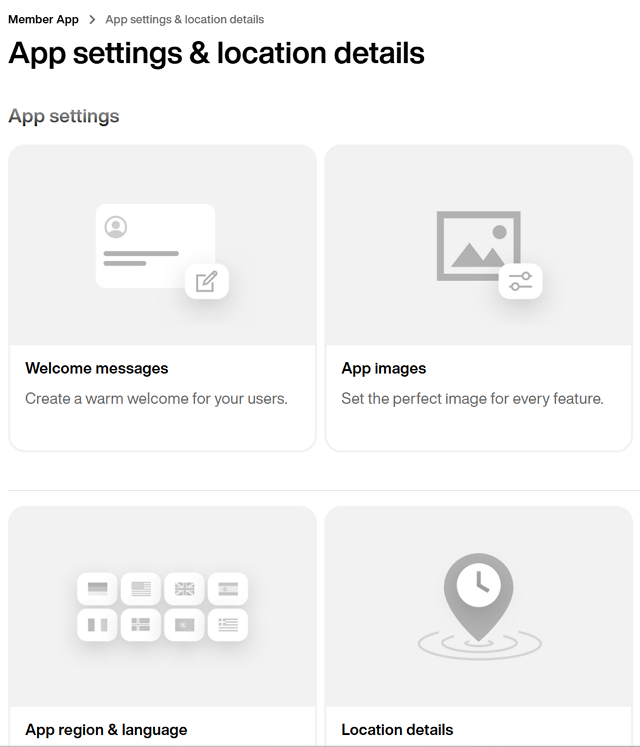
On this page, you can manage the welcome message that members see when launching the Member App.
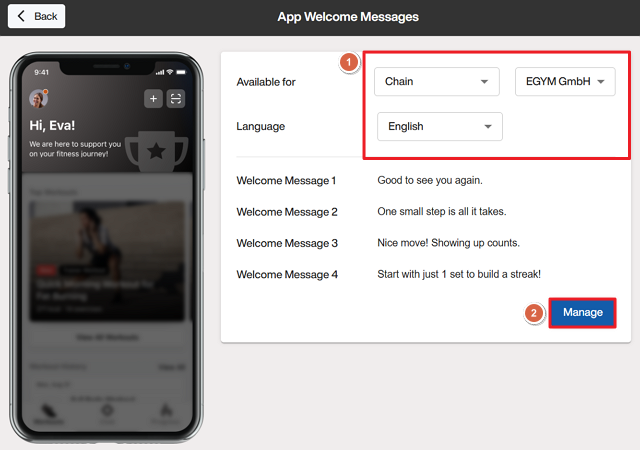
Select the location and language to view the relevant welcome messages.
Click to edit the welcome messages.
On this page, you can view and change the image that displays for different features in the Member App.
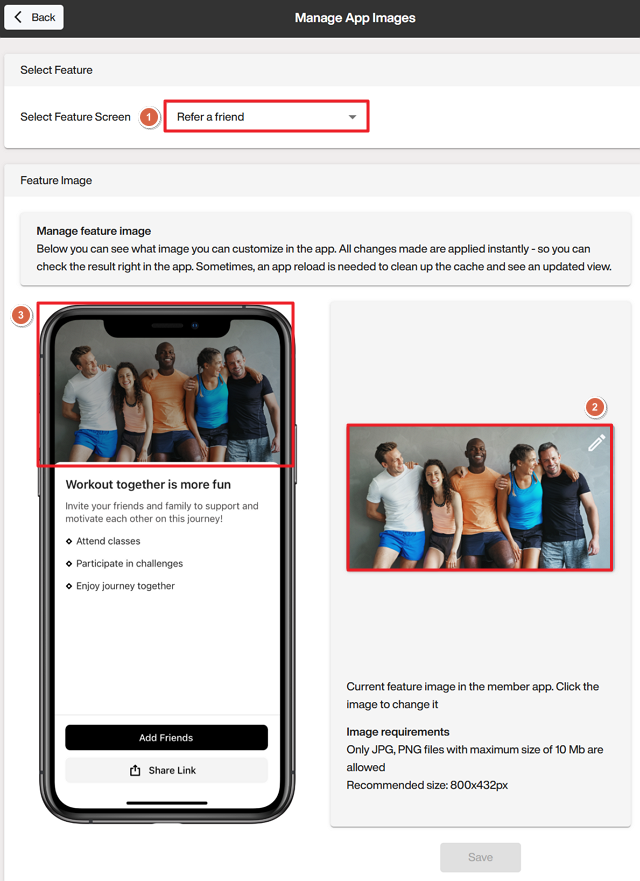
Select the feature you want to view.
Click on the image to upload a new one.
Note
Each feature image has different image requirements, so make sure to follow the image specifications shown on the screen.
Confirm how it will appear in the Member App.
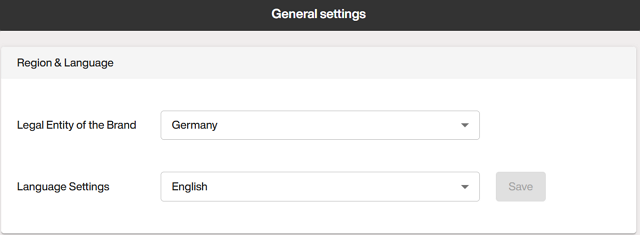
On this page, you can set the region and default language for the Member App.
On this page, you can manage your gym hours, addresses, additional websites, and other links.
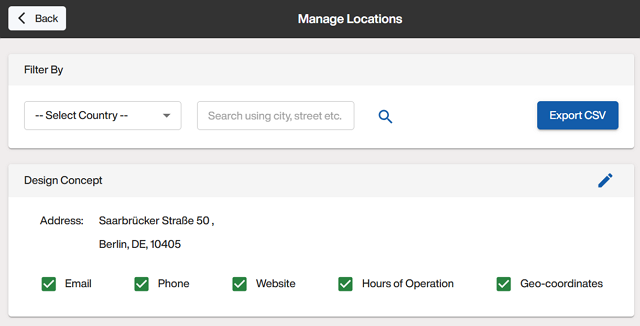
Find a specific gym by filtering or searching.
Note
Items that that have not been updated for that location will have an empty checkbox. Once the data for that location is updated, the checkbox will be ticked.
Click the pencil icon to edit the details of a gym location:
Fill out the information as required.
Note
The email here is for general requests, and will also be used when members request a trainer.
Enter your hours of operation.
Note
Use the option to enter information when your gym is completely closed (for example, for renovations). This will replace all hours of operation until updated.