Member activity
The > page in the EGYM Business Suite displays all bookings and check-ins at your studio, showing which members visited and when.
Note
This page only shows if you have compatible Member Management Software (MMS) that allows in-app class booking.
If you have multiple facilities, make sure the correct one is selected from the drop-down menu.
Use this tab to see details for booked sessions.
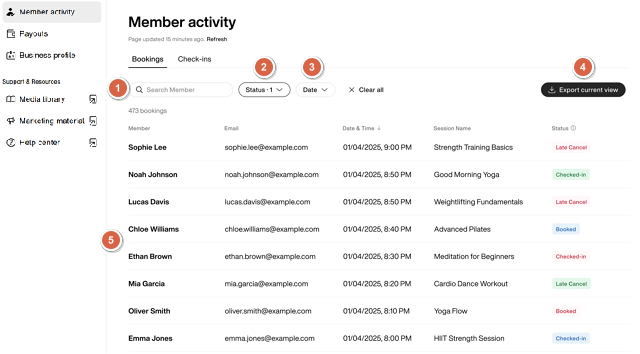
Use the search bar to search for members by name.
Click to filter the page by the booking status.
Click to filter the page by check-in date. Select a date on the calendar or choose from the following options:
Today
Last 7 days
Last week
Last month
Last year
Click to export the list of bookings according to the filters you've applied.
Scroll down to view bookings. The most recent bookings are shown first with the following information:
Member
Date & Time of check-in (formatted as YYYY-MM-DD | HH:MM)
Session Name
Booking Status, as follows:
Booked: Member reserved a session and is expected to attend.
Checked-in: Member attended the session and checked in with Wellpass.
Cancelled: Member cancelled their booking before the cancellation deadline.
No-show: Member didn't attend their booked session.
Late Cancel: Member cancelled after the cancellation deadline.
Not Running: The studio cancelled the session.
Pending Approval: The studio is reviewing the booking request.
Request Declined: The studio rejected the booking request.
Use this tab to view member check-ins at your studio.
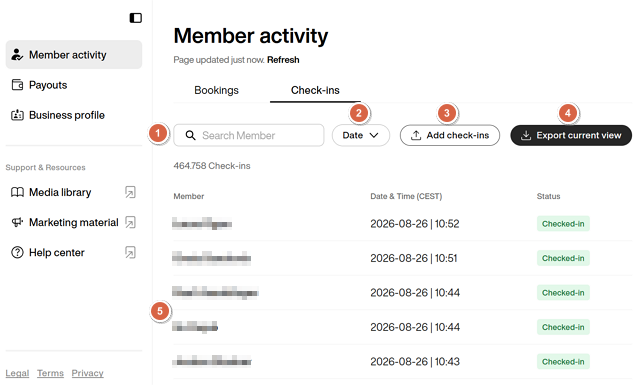
Use the search bar to search for members by name.
Click to filter the page by check-in date. Select a date on the calendar or choose from the following options:
Today
Last 7 days
Last week
Last month
Last year
Click and fill out the form to add member check-ins manually.
Click to export the list of check-ins according to the filters you've applied.
Scroll down to view check-ins. The most recent check-ins are shown first with the following information:
Member
Date & Time of check-in (formatted as YYYY-MM-DD | HH:MM)
Status: Shows "Checked-in" for verified visits