Login experience
Purpose
This article explains how to configure login devices, user interface QR codes, using the Business Suite. With these options, you can customize how members interact with your hardware and personalize the visual environment to match your gym's branding. These configurations apply globally across all your connected EGYM machines. It is recommend to finalize these settings before your machines go live to ensure a consistent, branded experience for your members from day one.
Prerequisites
Ensure you meet the following prerequisites before attempting to change configurations:
You need access to the Business Suite at http://business-suite.egym.com.
You must have admin permission.
Near-field communication (NFC) phone login must be enabled for your location by your Customer Success Manager before it appears as a selectable option.
Phone login requires built-in hardware compatibility.
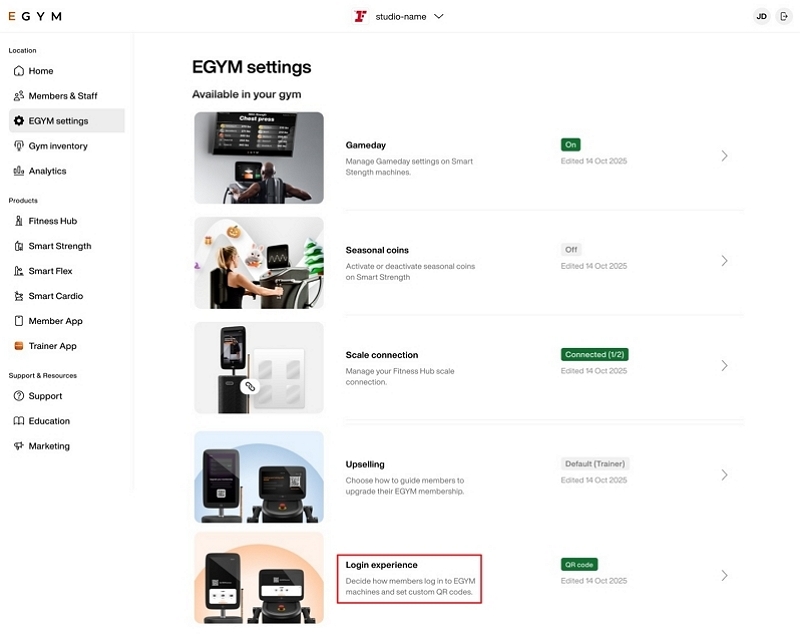
How to navigate to EGYM settings
Go to EGYM Business Suite.
If you have multiple facilities, make sure the correct one is selected from the drop-down menu.
Set up login devices
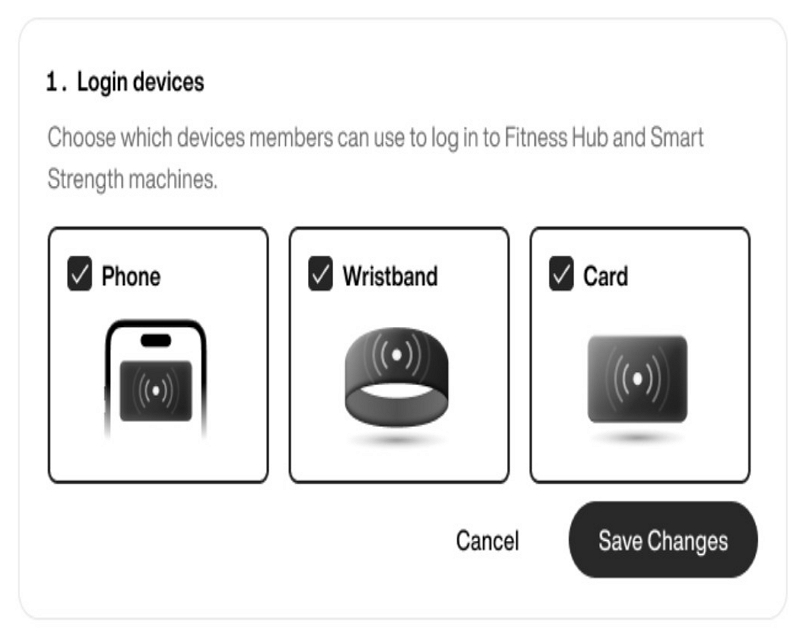
The section lets you choose which devices members members can use to access your EGYM machines.
Available options
: Members tap their phone (using NFC) on the machine to log in.
: Members tap their RFID wristband on the machine to log in.
: Members tap their RFID card on the machine to log in.
Anmerkung
Select at least one login device at all times. You can select multiple login devices. The system keeps the button disabled until you make an eligible change. Find NFC information in the reference box continuously displayed on this page.
Konfiguriere den QR-Code des Geräts
Der Bereich steuert auch den QR-Code, der auf den Login-Bildschirmen der EGYM Geräte angezeigt wird. Dieser Code kann Mitglieder zur eigenständigen App deines Fitnessstudios leiten oder sie durch die Einrichtung des Smartphone-Logins (NFC) führen.
Anmerkung
Wenn du einen QR-Code konfigurieren möchtest, muss ein RFID-Gerät aktiviert sein.
Navigiere von zum Bereich Login-Erlebnis.
Wähle unter die Option aus, die zu deiner Einrichtung passt.
Wenn du dich für den QR-Code entscheidest, gib deine Ziel-URL in das bereitgestellte Feld ein.
Wähle . Bestätige die Änderungen in der Bestätigungsmeldung.
Wenn ein Mitglied den Login per Smartphone bereits konfiguriert hat, öffnet das Scannen des QR-Codes sofort die NFC-Funktion in der App deines Fitnessstudios. Mehr Infos findest du unter Add gym pass to your digital wallet.
Anmerkung
Das System prüft, ob benutzerdefinierte URLs einem gültigen Webformat entsprechen; es überprüft nicht, ob der Ziel-Link live oder aktiv ist.