Your training plan
Training plans can be created by:
A trainer via the Trainer App
The member manually
Go to the tab.
In the My workouts section, tap .
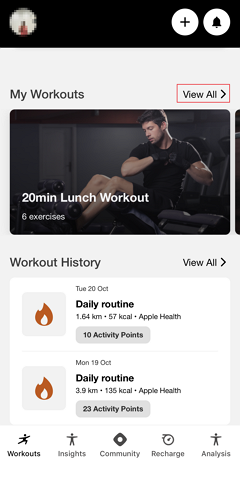
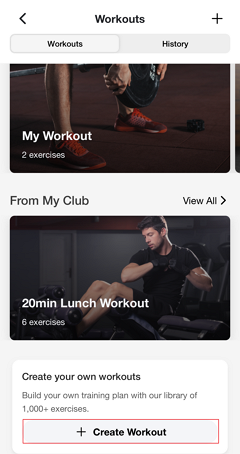
Scroll down and tap the button.
Tap the search bar to search exercises or select exercises from the library of over 1,000+ exercises and tap .
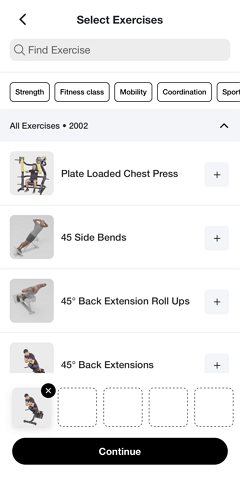
Tap the exercise or photo to view animated demonstrations and proper form guidance for each exercise.
Add additional exercises by tapping + to select more exercises. After adding, tap to confirm.
For each exercise, customize:
Number of sets
Reps per set
Rest duration between sets
Weight/load (kg total)
Tap to save your custom plan.
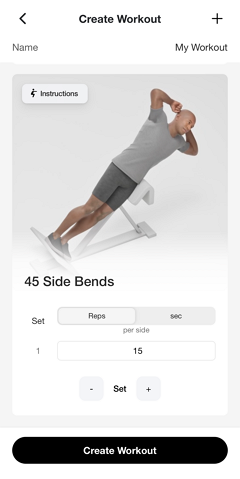
Once created, your custom workouts appear in the "My Workouts" section where you can:
Select and start a workout any time.
Edit exercises, sets, reps, or rest periods.
Repeat the same workout multiple times.
Go to the tab and select in the My Workouts section.
Select the workout plan you want to modify.
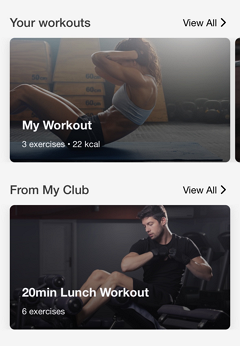
Tap the three-dot menu on the right side of the exercise.
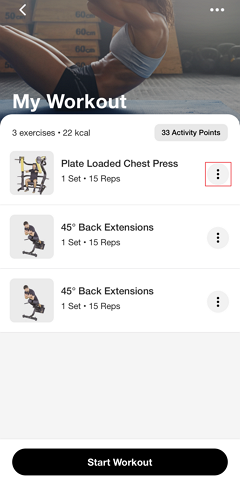
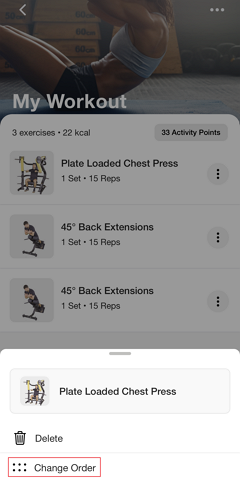
Select .
The exercises will display with drag-and-drop
 icon.
icon.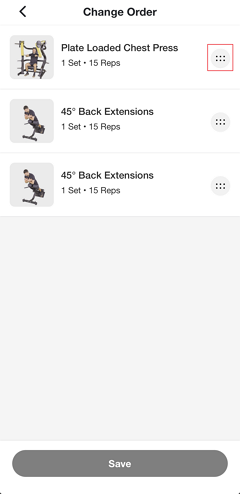
Drag each exercise to reorder them as desired.
Tap to confirm the new order.
Go to the tab and select in the My Workouts section.
Select the workout plan you want to modify.
Tap the three-dot menu on the right side of the exercise.
Select .
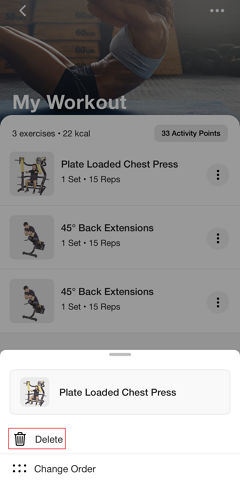
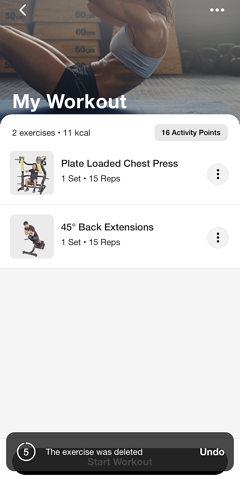
A confirmation message will appear with a countdown—tap if you want to restore the exercise.
Anmerkung
You can also edit or delete an existing workout plan in My Workout, by tapping the three-dot in the upper right corner, and select or .
You cannot change training plans that your trainer or studio have created. The administration of the plans are done by your studio. Feel free to contact your studio directly for feedback.