Login experience
Purpose
This article explains how to configure login devices, user interface QR codes, using the Business Suite. With these options, you can customize how members interact with your hardware and personalize the visual environment to match your gym's branding. These configurations apply globally across all your connected EGYM machines. It is recommend to finalize these settings before your machines go live to ensure a consistent, branded experience for your members from day one.
Prerequisites
Ensure you meet the following prerequisites before attempting to change configurations:
You need access to the Business Suite at http://business-suite.egym.com.
You must have admin permission.
Near-field communication (NFC) phone login must be enabled for your location by your Customer Success Manager before it appears as a selectable option.
Phone login requires built-in hardware compatibility.
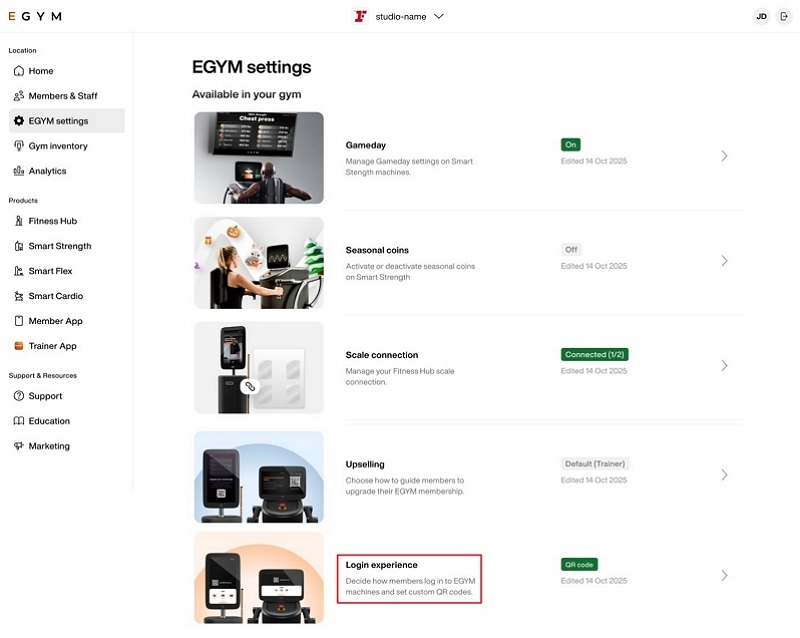
How to navigate to EGYM settings
Go to EGYM Business Suite.
If you have multiple facilities, make sure the correct one is selected from the drop-down menu.
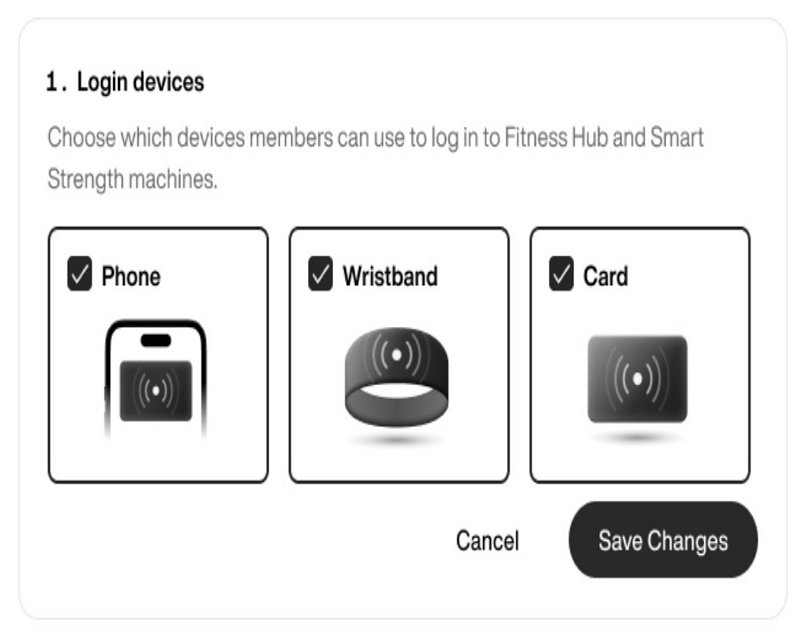
Set up login devices
The section lets you choose which devices members members can use to access your EGYM machines.
Available options
: Members tap their phone (using NFC) on the machine to log in.
: Members tap their RFID wristband on the machine to log in.
: Members tap their RFID card on the machine to log in.
Opmerking
Select at least one login device at all times. You can select multiple login devices. The system keeps the button disabled until you make an eligible change. Find NFC information in the reference box continuously displayed on this page.
Configureer de QR-code van het toestel
De sectie beheert ook de QR-code die wordt weergegeven op de inlogschermen van EGYM-toestellen. Deze code kan leden naar de zelfstandige app van je fitnessclub leiden of hen door de instelling voor inloggen via telefoon (NFC) begeleiden.
Opmerking
Als je een QR-code wilt configureren, moet een RFID-toestel zijn ingeschakeld.
Navigeer vanuit naar de sectie Inlogervaring.
Selecteer onder de optie die bij jouw faciliteit past.
Als je voor de QR-code kiest, voer dan je bestemmings-URL in het daarvoor bestemde veld in.
Selecteer . Bevestig de wijzigingen in het pop-upvenster.
Als een lid al inloggen via telefoon heeft geconfigureerd, opent het scannen van de QR-code direct de NFC-functie in de app van je fitnessclub. Kijk voor meer informatie op Add gym pass to your digital wallet
Opmerking
Het systeem controleert of aangepaste URL's voldoen aan een geldige webindeling; het verifieert niet of de bestemmingslink in gebruik of actief is.