Input your gym inventory

Setting up the gym inventory begins with adding equipment items in bulk and individually. Follow these steps to add new equipment accurately to ensure it is fully integrated into EGYM Genius for personalized workout planning.

Before you start

Before you begin adding equipment to your gym inventory, we highly recommend you first create a complete list of all of the equipment in your gym, including the vendors, vendor lines, and equipment types. This will make the setup process much smoother and quicker.

  1. Go to the EGYM Business Suite.

  2. If you have multiple facilities, make sure the correct one is selected from the drop-down menu.

    Select_Facility.png
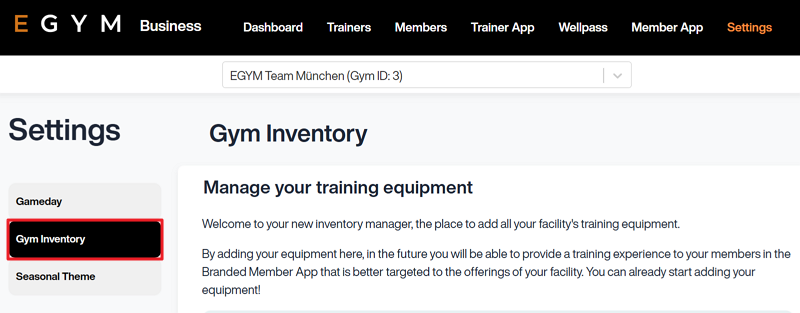
  3. In the left panel, click on Gym Inventory.

    Gym_Inventory_page.png
  4. Now, you can start adding equipment.

Opmerking

Screens may vary depending on your gym's setup (for example, features like Wellpass or Gameday may not be available).

Add equipment

  1. Select Add Equipment. This opens the gym inventory wizard.

    add_equipment_button.png
  2. Select the category of equipment.

    select_category.png
  3. For Strength, Cardio, and Flexibility Machines, select the vendor (brand) and product line of the equipment and click Continue. You can only select one vendor at a time, but you can select multiple vendor lines.

    Opmerking

    If you can’t find your vendor name or line, select DEFAULT and do the following:

    1. Refer to the EGYM Genius Partner Roadmap to confirm which brands or lines are linked or planned to be linked with Genius in the future.

    2. If your vendor or lines are not included in the partner roadmap, reach out to inventory@egym.com so we can consider adding them.

  4. Select the equipment you want to add.

    add_strength_machines_menu.png

    Opmerking

    The Genius_compatible_icon.png icon means that the equipment is EGYM Genius optimized. EGYM Genius uses extensive metadata on these machines, including machine settings, seat positions, and training weights, to generate accurate, personalized training plans. Hover over the icon to view the exact level of optimization.

    EGYM_Genius_optimized_icon.png
  5. For Free Weights and Functional Equipment, fill in the minimum weights, maximum weights, and increments where required. You can also add multiple sets or options of the same equipment type.

    add_free_weights.png
    Voorbeeld 1. Defining weights

    Specifying exact weight ranges and increments helps ensure that EGYM Genius accurately calculates and suggests appropriate weights for training plans.

    For example, for dumbbells, it could be:

    • Min. Weight: 2.5 kg / 5 lbs

    • Max. Weight: 40 kg / 50 lbs

    • Increment: 2.5 kg / 5 lbs


  6. Once you’re done, click Add to Library. The new equipment will appear in your gym inventory.